You don't have to click rules together in the rule editor – you can describe them to the AI agent: "If the drive is solar, the colour white should not be selectable." The agent looks up the matching characteristics and values, creates the rule and explains existing rules to you. This article shows what the agent can do, how best to phrase rules and where you need to step in yourself.
How rules work in general is explained in Build a Rule Set.
Requirements
- The AI assistant is switched on (Settings → AI, see Global Settings).
- You need AI tokens for the chat – see AI Tokens.
- Open the component in the editor. The AI assistant panel sits at the bottom; New chat starts a new conversation.
In the editor the agent only works on the open component. How to use the agent in general is described in AI Agent: Build Configurator via Chat.
What the agent can create
| Rule type | What you say | What the agent creates |
|---|---|---|
| Blacklist | "… should not be selectable", "… hide", "… only if …" | Hides individual values or whole characteristics |
| Predefined values | "… set the colour to white" | Sets a value, with the mode Apply always |
| Error / Warning | "… show the message …" | A message with the Error type Error |
In addition, the agent can
- create, rename and delete rule groups and move rules between groups,
- change and delete rules,
- set a Weight on request when two rules preset the same characteristic (only takes effect in V3).
The rule types Predefined qty and Predefined min/max are best created yourself in the rule editor. Both only take effect in Legacy anyway – see Frontend Engine: Legacy or V3.
Describing rules
Name characteristics and values as they're called in the editor. The agent looks them up in the component – you don't need to know any internal names.
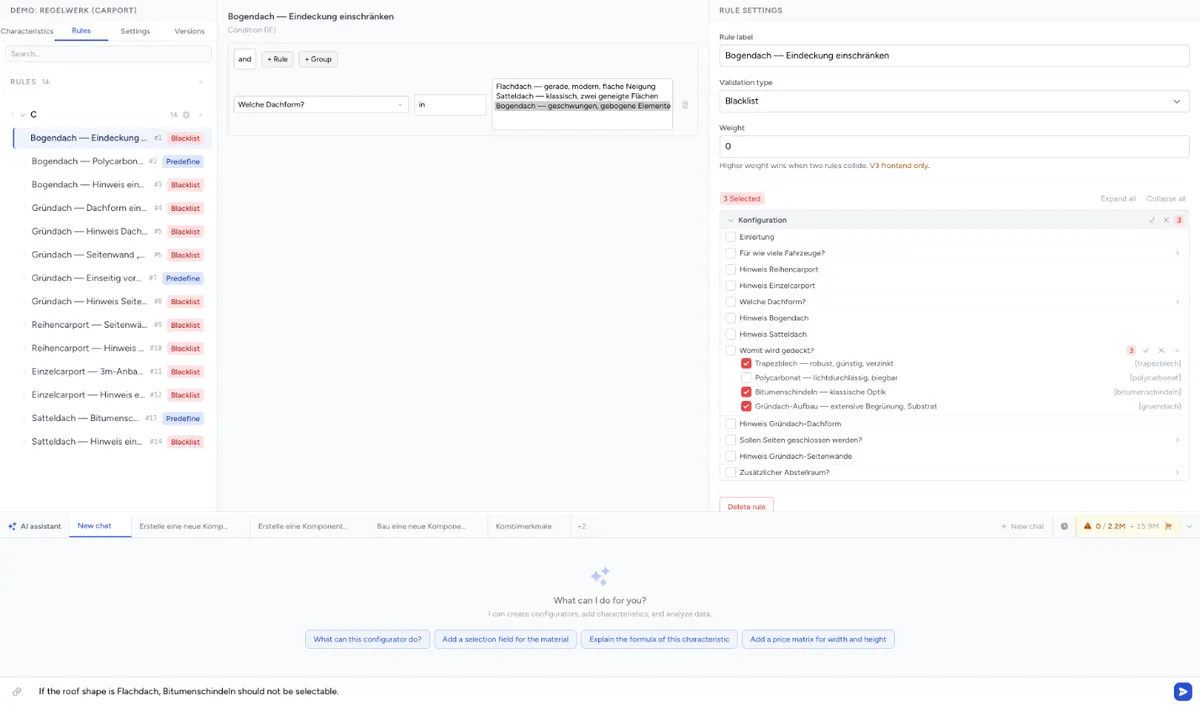
Hiding values
"If the drive is solar, the colour white should not be selectable."
Hiding a whole characteristic
"If the drive is crank, hide the characteristic Remote control."
Showing a characteristic only under a condition
"The characteristic Motor power should only appear if the drive is electric."
Rules can only hide characteristics, not show them. So the agent reverses the condition: it hides Motor power as long as the drive is not electric.
Presetting a value
"If the model is Basic, set the colour to white."
The agent uses the mode Apply always for this – the colour is set to white even if the customer has already chosen another one. If the customer's choice should be kept, say so or set the mode to No selection or default value in the rule editor.
Showing a message
"If the material is wood and the width is over 180 cm, show the error 'Wood is available up to 180 cm width.'"
The agent creates a rule of the type Error / Warning. If the customer should still be able to order, set the Error type to Warning in the rule editor afterwards.
And / or
"If the material is aluminium and the width is over 250 cm, the manual drive is not possible."
"If the drive is electric or solar, hide the crank."
With "or" between values of the same characteristic, you usually get an in condition with both values.
What doesn't exist as a rule
| Request | How to do it |
|---|---|
| "From 200 cm width the reinforcement profile is required" | There's no rule that makes a characteristic required. Ask for an error rule instead: "If the width is over 200 cm and nothing is selected for the reinforcement profile, show the error 'Please choose a reinforcement profile.'" |
| "With solar, at most 250 cm width" | In V3 as an error rule: "If the drive is solar and the width is over 250 cm, show an error." In Legacy also possible: Predefined min/max, created in the rule editor. |
| "Hide all RAL colours" | A rule knows no wildcards like "RAL*", only individual values. The agent picks out the matching values and enters them one by one. If new RAL values are added later, the rule doesn't include them automatically – add them via chat or in the rule editor. |
Many rules at once
You can describe several rules in one message, as a list or a table:
"Create the following rules in a new rule group Drive:
- Solar: colour white not selectable
- Crank: hide remote control
- Stainless steel: no solar drive"
Paste a table into the chat as text, for example copied from Excel:
If characteristic;Value;Then;Characteristic;Value
Drive;Solar;hide;Colour;White
Drive;Crank;hide;Remote control;
Material;Stainless steel;hide;Drive;Solar
As files, the chat only accepts PDF, images, Markdown and text (.md, .txt) up to 10 MB – no CSV or Excel files. If need be, save a table as .txt or paste the content directly.
With longer lists the agent usually describes first what it's going to create. Check the plan before you let it go ahead.
Querying rules
The agent also answers questions about existing rules:
"Which rules affect the characteristic Colour?"
"What does the rule Wood without RAL do?"
"List all rules of the rule group Drive."
It names rules, characteristics and values by their labels. In the editor you see the same thing on the characteristic in the Referenced in tab.
Correcting and deleting rules
"In the rule Wood without RAL, white and brown should be selectable again."
"Delete the rule Crank without remote control."
If the agent deletes a rule group, all rules in it are gone. If you want to keep rules, tell it beforehand to move them to another group.
Checking in the rule editor
The agent writes its changes straight into the component's draft, and the editor reloads them.
- Save your own changes before you let the agent work. Undo takes you back to the state before its change.
- Check the new rules in the Rules tab: are the condition, rule type and effect right?
- Test typical combinations in the Preview.
- Publish the component. Only you can do that – the agent never publishes.
Troubleshooting
- The rule doesn't take effect – have it explained: "What does the rule … do?" Check in the rule editor whether the condition and hidden values are right. In the shop it only applies after publishing.
- The agent can't find a characteristic – give the label exactly as in the editor, or add the group: "the characteristic Colour in the group Housing".
- The customer's choice is overwritten – the predefined value is set to Apply always. Change the mode.
- The customer can't order despite the message – the message is an Error. For a warning, change the Error type.
- A predefined min/max or qty has no effect – the component runs with V3, which doesn't know these rule types. Use an error rule.
- The agent won't change another component – in the editor it only works on the open component. Open the other component.