The components overview lists all configurators of your service order. This is where you create new ones, search, sort with tags, duplicate, back up components as ZIP files and import them again – also into another service order. This article explains each of these tasks.
The components overview
You reach it via Components in the main navigation; when you open the admin from the Service Portal, you land here directly.
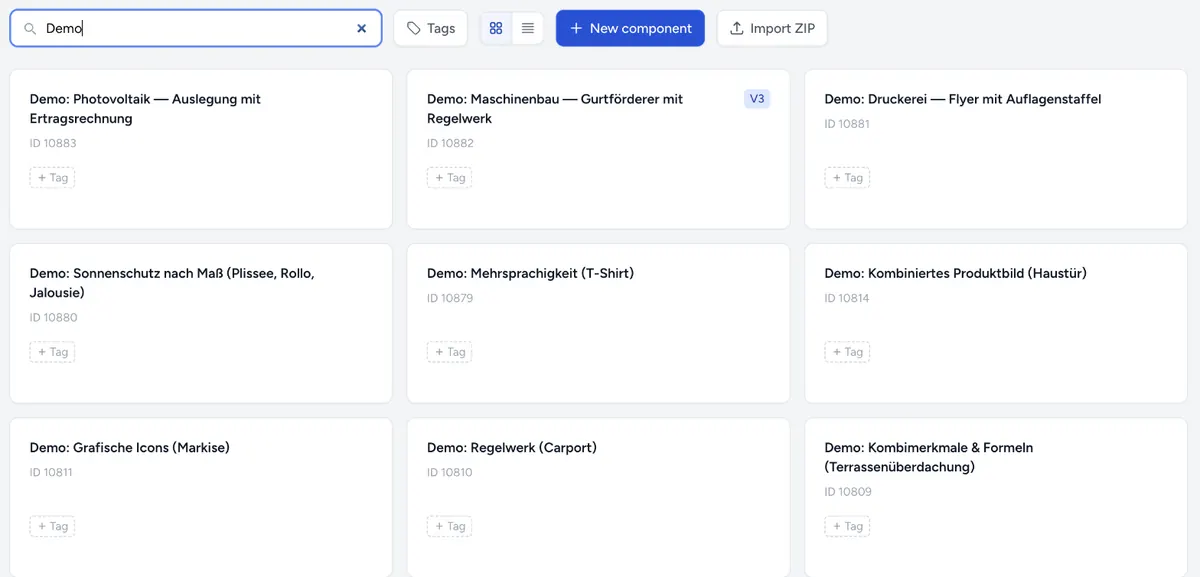
At the top you find:
| Element | Effect |
|---|---|
| Search components… | Searches the title – in all languages – and the ID |
| Tags | Filters by tags, see Tags |
| Grid view / List view | Switches the display. The admin remembers your choice. |
| New component | Creates an empty component |
| Import ZIP | Imports an exported component, see Export and import as ZIP |
| Sync components from cloud | Only for accounts with the classic cloud: fetches components that were created or deleted outside this admin |
What a component shows in the overview
- Title – in the language the component was created in.
- ID – the number you use to assign the component to a product in the shop. A component that has never been published shows ID —.
- Local – the component has never been published and only exists as a draft. Such components are always listed at the top.
- V3 – the component needs the V3 frontend engine, for example because it contains a captcha. Older shop plugins cannot load it – see Frontend engine: Legacy or V3.
- Tags – coloured labels you assign yourself.
Hovering over a component shows the actions Attachments, Export component, Duplicate component and Delete this component. Clicking the component itself opens the editor.
Create a new component
- Click New component.
- Enter a Title, e.g. “Made-to-measure blind”.
- Click Create. The editor opens with an empty component.
The new component is Local until you publish it for the first time. Only then does it get its ID. How to continue is shown in Create your first component.
Sample components
If your service order is still empty, the admin offers you four sample components on your first visit: “Your workspace is still empty. Shall we add four sample components?” They show a combined product image, combination characteristics with formulas, a rule set and graphic icons.
With Yes, add them they appear in the overview. They are published in the background and therefore work in the shop straight away – this takes a moment. You can edit, publish or delete them like any other component.
If you declined the offer with No, thanks, you can reach it again via Introduction in the main navigation as long as the overview is empty.
Tags
Tags help you organise many components, for example by product line, customer or status.
Assign a tag:
- Click the tag icon on the component (Assign tags).
- Tick existing tags, or enter a name under New tag and click Add.
Filter by tags: Click Tags at the top and choose one or more tags. The overview then shows all components that carry at least one of the selected tags. Clear filter shows all of them again. The filter is kept as long as the browser tab is open.
Manage tags: Under Tags → Manage tags you rename tags, change their colour or delete them (Delete tag). A deleted tag disappears from all components.
Good to know:
- Tags belong to the service order. They are not transferred to the cloud and have no effect on the shop.
- Tags are not exported. When duplicating, the copy gets the same tags as the original.
- Tags on a local component are kept when it is published for the first time.
Duplicate a component
Duplicate component creates a complete copy: all groups, characteristics, values, rules, settings and images. The copy
- has the original's name with “copy - ” in front – in each language in that language's word, e.g. “Kopie - ” in German, “copie - ” in French,
- is Local, i.e. not published yet,
- opens directly in the editor,
- stays linked to the same building blocks as the original.
The images are copied. If you change an image on the copy, the original stays untouched.
Rename the copy under Settings → General → Title before you publish it.
Export and import as ZIP
The ZIP export saves a component as a file – for archiving, as a template or to transfer it to another service order.
Exporting
- Hover over the component and click Export component.
- The admin shows Exporting… please wait and then Download started.
The ZIP file contains the complete component with all images. It contains the draft – including changes you have saved but not yet published. For components with many images the export takes a little longer.
Importing
- In the overview, click Import ZIP.
- Choose the ZIP file – at most 50 MB.
- The admin creates a new component from it and opens it in the editor.
The imported component is Local and gets a new ID on its first publish. It does not replace an existing component – if you import the same file twice, you have two components.
Links to building blocks are not carried over on import. The price tables are included in the imported component as its own copy.
Transfer a component to another service order
Every service order has its own workspace. This is how you take a component with you, for example from a test account to a live account or into the workspace of your Shopify shop:
- In the Service Portal under Services, open the service order that holds the component with Manage.
- Export the component as a ZIP.
- In the portal, open the target service order with Manage.
- Import the ZIP file with Import ZIP.
- Check the component in the preview and publish it.
- Assign the new ID to the product in the shop.
Service order settings – languages, domains, email sending, branding – do not travel with it. Check them in the target service order under Settings (see Global settings), especially if the component has an action button that sends emails.
Delete a component
- Hover over the component and click Delete this component.
- Confirm Delete component? with Yes, delete.
This deletes the draft, all versions and – for a published component – the published version as well. The component therefore disappears immediately from every shop it is embedded in. This cannot be undone.
If you only want to take a component out of use temporarily, remove it from the product in the shop instead of deleting it. To be safe, you can export it first.
Attachments
Under Attachments you see what your customers have produced for a component: Uploaded files from file upload characteristics, Combined images, Configuration files and Deep links. Delete session removes the data of one customer session.
Building blocks
Price tables and tiered prices that several components share are maintained centrally under Building blocks in the main navigation. When a building block changes, the admin updates all linked components – when saving, Publish affected components decides whether they are also published right away.
The link is kept when duplicating, but not on ZIP import.
Exchanging a component's values
Individual value lists – for example all colours of a characteristic – are not exchanged via the component export but directly on the characteristic with Export values and Import values, as a CSV or a ZIP with images. How this works is described in Add characteristics & values.
Troubleshooting
- A component is missing from the overview – check the search and the tag filter (Clear filter). For accounts with the classic cloud, Sync components from cloud helps if it was created outside this admin.
- The import fails – the file is not a component ZIP from an export, or it is larger than 50 MB. The file must be structured the way the export creates it.
- Nothing happens after duplicating – wait a moment; the copy is created with all its images. If it does not appear, reload the overview and check whether a component starting with “copy - ” was created.
- The imported component does not work in the shop – it received a new ID on its first publish. Assign the new ID in the shop and check the domains under Settings → Domains.
- A customer no longer sees the configurator – check whether the component was deleted. A deleted component can only be restored from an export made beforehand – as a new component with a new ID.