If you use the same price table or the same tier list in many components, you don't have to maintain it in each one separately. Under Building blocks you create it once centrally and link it to the characteristics that need it. When you change the building block, configento.app carries the new version into all linked components – published right away if you wish. This article shows how it works.
What a building block is
A building block is a centrally maintained price list. There are two kinds:
| Kind | Content | Fits |
|---|---|---|
| Price list | One or more tables, e.g. prices by width × height | Characteristics of the Price list data type – replaces their Matrix data |
| Tiered pricing | Tiers with condition, value and price | The Tiered pricing section of Formula and Simple combination |
Only the content is central. Everything else stays independent in each component: for the price list the Matrix settings (which characteristics determine row and column, operators), for tiered pricing the Price operator.
Building blocks belong to a service order. They are available in all components of that service order, but not in others.
The overview
You reach the building blocks via Building blocks in the main navigation. The list shows for each building block:
| Column | Meaning |
|---|---|
| Name | Name of the building block; a click opens it |
| Kind | Price list or Tiered pricing |
| Used in | Number of linked components |
| Version | Current version, e.g. v3 |
| Last run | Result of the last transfer: all done, running … or the number of components that failed or are not published |
Creating a building block
There are two ways.
From an existing component – the usual way if the list is already maintained:
- Open the component and the characteristic with the list.
- In the Matrix data section, click Create as central price list, or in the Tiered pricing section Create as central tiered pricing.
- Enter a Name of the building block and click Create.
The building block takes over the characteristic's content and is linked to it immediately. If the characteristic has not been saved yet, “Save the component first — the characteristic is not stored yet.” appears.
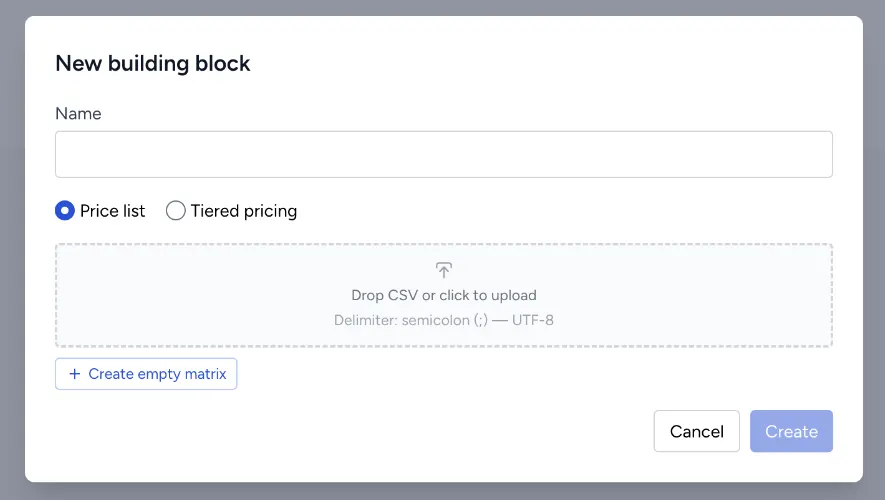
New under Building blocks:
- Click New building block.
- Enter a Name and choose Price list or Tiered pricing.
- Enter the table or the tiers and click Create.
Linking components
One at a time in the characteristic
In the Matrix data or Tiered pricing section, choose Link to central price list … or Link to central tiered pricing … and then the building block from the list. The list in the characteristic is replaced by the central one.
Many at once in the building block
In the building block, open the Linked components tab and click Link more …. configento.app searches all components of the service order and groups the matching characteristics:
| Group | Meaning |
|---|---|
| Identical content | The list already matches the building block exactly. These characteristics are preselected. |
| Same name, different content | The characteristic has the same name as a characteristic already linked to the building block, but the list differs – e.g. “differs in 3 of 40” |
| Other characteristics of this kind | All other matching characteristics. They only appear after Show … other characteristics of this kind. |
The search field filters by component or characteristic; Select all and Select none select or deselect a whole group. Characteristics already linked to another building block carry the note linked elsewhere.
Choose whether the affected components should be published right away (Publish affected components) and click Link …. For characteristics with different content this is a price change: their list is replaced by the building block.
A price list can only be linked to characteristics of the Price list data type. For tiered pricing, Link more … only finds characteristics that already have at least one tier; link a characteristic without tiers individually in the characteristic.
A characteristic of the Price list data type links its table as a building block. That is why the editor does not offer central tiered pricing in the Tiered pricing section of such a characteristic – maintain the tiers there in the component. If linking a newly created building block fails, the editor removes the building block again right away so that none is left over unused.
How to recognise a link
A linked characteristic shows the note Maintained centrally as building block: with the building block's name and the links Edit centrally and Unlink.
Changing the content
You can change a building block in two places – the result is the same:
- In the building block, Content tab: edit the name and the table or tiers, then Save.
- Directly in the linked characteristic: the table or tiers can be edited there. As soon as you change something, “This change applies to all … linked components.” appears with Save centrally and Discard.
In both cases, Publish affected components decides whether the components go live right away. Every saved change becomes a new Version of the building block.
What happens to the components
configento.app transfers the change to every linked component in the background. The progress appears as “… of … components”; at the end there is a report:
| Result | Meaning |
|---|---|
| updated and published | The component is live with the new list. |
| updated in the draft only — they have unpublished changes | The component had its own changes that were not published yet. So that these don't go live without being asked, the new list is only in the draft. |
| updated in the draft only — never published | The component had never been published. |
| updated in the draft only — publishing was not selected | You deselected Publish affected components. |
| unchanged — already up to date | The component already had the list. |
| failed | The component could not be updated or published, e.g. because it contains errors that prevent publishing. |
For the cases that remain open, the report offers:
- Publish these … now … – publishes the components with unpublished changes of their own. configento.app asks first, because their other changes go live as well.
- Retry failed – restarts the transfer for the failed components. If publishing was rejected because of errors in the component, fix them first and then publish the component yourself.
All previous transfers are listed on the Runs tab, each with Show report.
Versions
The Versions tab lists all versions of the building block. Restore brings back an older one: it becomes the new version and is carried into the linked components – with publishing.
Unlinking and deleting a building block
- Unlink in the characteristic or on the Linked components tab: the component keeps its current copy of the list. From then on you maintain it in the component again; changes to the building block no longer reach it.
- Delete in the building block: if it is still linked, configento.app asks “Unlink … components and delete? They keep their current copy.” The prices in the components do not change as a result.
Frontend engines and permissions
The content of a building block is copied into every linked component. For the shop, a linked list is therefore a completely normal list – building blocks work with Legacy and with V3. The same engine differences as usual apply to tiered pricing, see Set Up Pricing.
Anyone who uses the service order's admin can maintain building blocks. Via the API you need an API key with Read & write; for affected components to be published right away, also Publish – see API — Getting Started.
Troubleshooting
- “Save the component first — the characteristic is not stored yet.” – the characteristic is new. Save the component and try again.
- The shop still shows the old prices – the component was only updated in the draft. Open the report on the Runs tab and publish the open components.
- A characteristic is missing from Link more … – it does not fit the building block's kind (a price list only fits characteristics of the Price list data type, tiered pricing only characteristics that already have a tier), is already linked to this building block or belongs to another service order. Also check Show … other characteristics of this kind.
- The price is wrong after linking – the component's Matrix settings or Price operator do not fit the central list. They are not linked along.
- A component failed – open it via the report, fix the reported errors and click Retry failed, or publish it yourself.