An action button that sends emails is a public form: anyone who finds the page can use it to trigger emails automatically – via your mail server. The Captcha characteristic protects against this. It works in the background, needs no third-party service and sets no cookies. This article shows how to set it up and what it checks.
How the captcha works
configento.app uses Altcha, a captcha based on the proof-of-work principle:
- When the configurator loads, the customer's browser fetches a computing task from configento.app.
- The browser solves the task itself. Depending on the device and difficulty, this takes fractions of a second to a few seconds.
- When the customer clicks the action button, the solution is sent along. The server checks it and only then performs the action.
The customer doesn't have to click on pictures or type anything. For a single visitor the task costs hardly any time; for a program that wants to send thousands of requests it becomes expensive. Every solution is valid only once and only for a limited time.
Requirement: the V3 frontend engine
The captcha is only available in the V3 frontend engine. That is why the data type is called Captcha (V3 only).
If a component contains a captcha,
- it carries the V3 badge in the components overview,
- the component settings show the note Requires Frontend V3,
- Magento 2 loads it with V3 automatically,
- it runs with V3 in Shopify anyway.
Shopware 6 and the classic HTML5 snippet always run the Legacy engine. The captcha cannot be displayed there – and the server still rejects the component's actions because the solution is missing. Don't use a captcha there. More on this: Frontend engine: Legacy or V3.
In the component settings under General, set the Engine to V3 (Beta). The preview in the admin follows this setting – you only see the captcha there with V3.
Setting up the captcha
- Open the component and create a new characteristic.
- Under Frontend, choose the data type Captcha (V3 only).
- Place it in the same group as the action button, ideally directly above it.
- Under Captcha settings, choose the Captcha complexity (see below).
- Save, check the preview and publish the component.
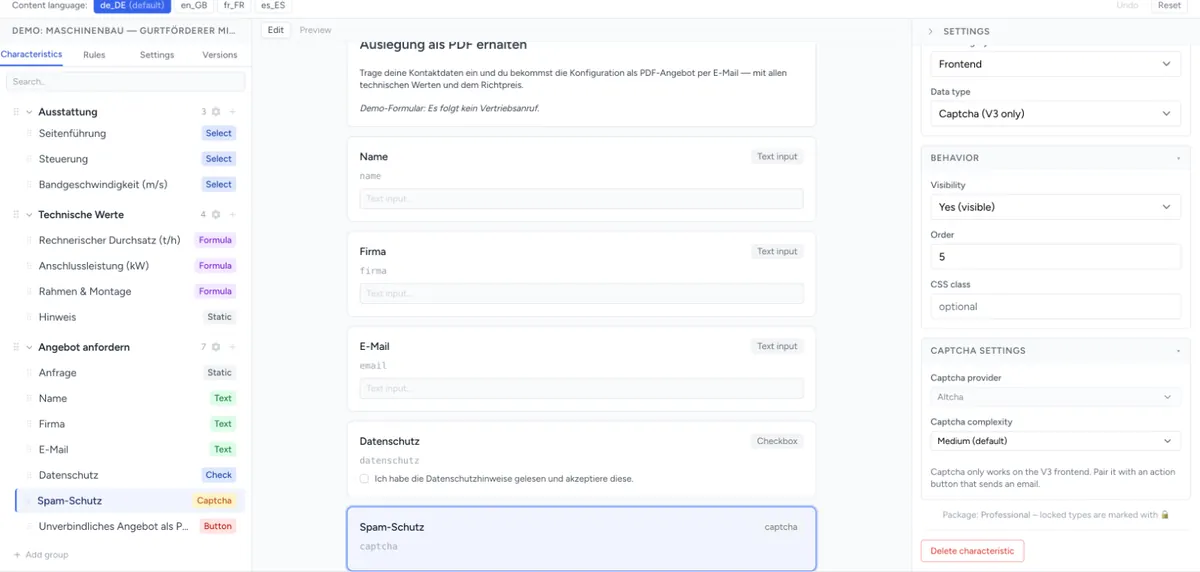
The Captcha provider is fixed to Altcha. One captcha per component is enough, even with several action buttons.
Captcha complexity
| Captcha complexity | Effect |
|---|---|
| Easy (fast verification) | Barely noticeable, even on slow devices |
| Medium (default) | The right choice for most shops |
| Hard (slower, more spam-resistant) | About four times the computing effort of Medium. On older smartphones, solving can take a noticeable time. |
Start with Medium (default) and only increase it if spam still arrives.
What the captcha protects
As soon as a component contains a captcha, the server checks the solution on every click on one of its action buttons:
| Action button action | With a captcha in the component |
|---|---|
| Send email | Only with a valid solution |
| Send email with PDF | Only with a valid solution |
| Generate PDF | Only with a valid solution |
| Custom URL | Only with a valid solution – checked before the data is forwarded to your address |
Without a valid solution the server answers with HTTP 403 and does not perform the action.
The captcha also counts in the configurator itself: as long as it is not solved, V3 shows “Please solve the captcha before submitting.” and holds back the action button and the cart. Since the browser solves the task by itself when loading, the customer normally doesn't notice. After every action the captcha solves a new task – if the customer clicks the action button a second time or tries again after an error, they have a valid solution again.
Everything about the actions themselves: The Action Button.
Notes in the editor
In the settings of an action button that sends emails, Spam risk: no Captcha in this component appears as long as the component has no captcha.
The check before publishing also warns:
- “An action button sends emails without a Captcha — spam risk on the public storefront.”
- “Captcha is present but no action button triggers it — the captcha is never checked.” – if no action button uses Send email, Send email with PDF or Custom URL.
The warnings do not block publishing.
Data protection
- The computing task comes from the configento.app server. No scripts, fonts or images from a third party are loaded.
- The captcha sets no cookies and does not track the visitor across pages. It only computes the task.
- Only the solution of the task is transmitted, together with the rest of the configuration data.
Other protection mechanisms
The captcha is not the only protection. Independently of it, configento.app limits how often an action can be triggered and does not send the same configuration several times in quick succession. The limits are listed in The Action Button.
Troubleshooting
- “Submission failed: HTTP 403” – the solution was missing or had expired. Wait until the captcha has solved a new task and try again. If the error always occurs, the component probably runs with the Legacy engine (Shopware 6, classic HTML5 snippet) – the captcha cannot be solved there.
- “Captcha could not be loaded. Please reload the page.” – the browser could not fetch the task, for example because of an ad blocker or a firewall. Check whether the page is allowed to reach configento.app.
- The captcha does not appear in the preview – the component's Engine is set to Legacy (default). Set it to V3 (Beta).
- Solving takes a long time on a smartphone – set the Captcha complexity to Medium (default) or Easy (fast verification).
- The cart button only responds after a moment – the browser is still solving the task. With Hard on slow devices this can be noticeable.
- Spam arrives despite the captcha – increase the Captcha complexity. Also check whether the emails really come through this component and not through another form on your website.