A configurator can appear in many languages: you maintain titles, characteristics, values, notes and the action button texts per language, and the shop automatically shows the matching version. This article shows how to activate languages, translate content, which language the shop chooses and what happens when a translation is missing.
Two different languages: admin and content
| Language | What it controls | Where you set it |
|---|---|---|
| Admin language | Menus, buttons and messages in the admin – German, English, French or Spanish | The admin takes over the language set in the Service Portal when you open it with Manage |
| Content language | The texts of your configurators that your customers see | Settings → Localization → Active languages |
The two are independent: you can use the admin in German while maintaining the English and French texts of your configurators. To change the admin language, switch it in the portal (see Login and Account Navigation) and open the admin again.
Activating languages
The content languages apply to all components of your service order.
- Open Settings → Localization.
- Under Active languages, choose a language with Add language…. There are 39 languages and variants to choose from, including several regions of the same language – such as
de_DE,de_ATandde_CHoren_GBanden_US. - Under Default language, set the main language of your content.
- Save with Save settings.
Use × to remove a language again. Translations you have already entered stay in the components; you just no longer see them in the editor.
More about this tab: Global settings.
Region or just language?
Only add the variants you really maintain differently. For one uniform English text, a single English variant is enough – the shop also finds it when it asks for another English region (see When a translation is missing).
The component's default language
Every component has a default language: the language you build it in. You set it in the editor under Settings → General → Basic settings at Default locale for this component, or you choose Use global settings to take over the account's default language – the editor and the configurator then follow the default language under Settings → Localization.
In the default language you see all settings in the editor. In every other language you only see the fields that are translated.
Translating content
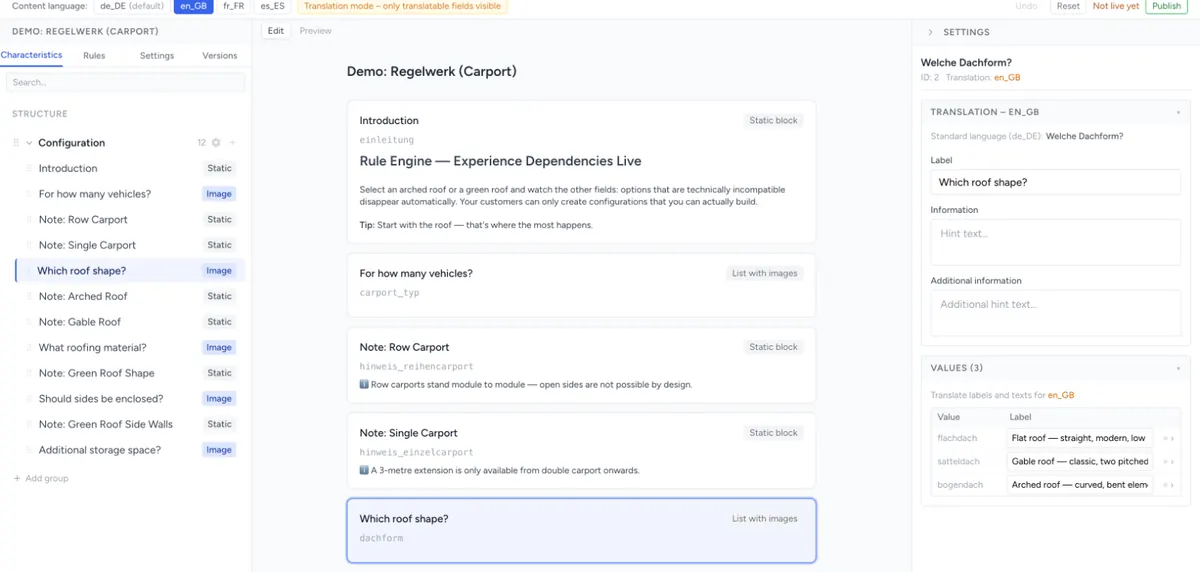
If your account has several languages active, Content language: appears at the top of the editor with one button per language. The default language is marked (default).
- First build the component completely in the default language.
- Under Content language:, click the language you want to translate. The editor now shows Translation mode – only translatable fields visible.
- Select a characteristic on the left. On the right, under Translation –
, you see the translatable fields; each shows the default-language text as a placeholder. - Translate and save.
What you maintain per language
| Where | Translatable fields |
|---|---|
| Characteristic | Label, Information, Additional information |
| Values of a characteristic | The label of each value, and – when expanded – its information |
| Small input field, Large input field, Date | Default value |
| Static field | Content |
| Action button | Label, Subject, Email body, PDF body – see The Action Button |
| Group | Group title – all languages are listed one below the other here, regardless of the selected content language |
| Component | Title and Headline under Settings → General, each for the selected content language |
Everything that does not reach the customer as text is not maintained per language: internal names, the Value of a value, prices, formulas, rules and images. A rule's Error message also has only one text for all languages – write it in the language most of your customers speak. Older rules whose message is still stored per language show the German text in the field (otherwise the first one available); when you save, it becomes one text for all languages.
Translating with the AI assistant
The AI assistant translates for you, for example: “Translate all characteristics and values of this component into French.” It only writes in languages that are active in your account. If the language you want is missing, it asks you to activate it under Settings → Localization first.
Check the result in the preview before you publish – especially the technical terms of your industry.
Checking the translation
In the middle column, switch to Preview. At the top of the preview, choose the language you want to see the configurator in – this is how a customer sees it in the shop in that language. The preview shows the saved state.
The translations only appear in the shop after you Publish – see Component settings.
Which language the shop shows
The language is determined by your shop, not by the component:
| Integration | Where the language comes from |
|---|---|
| Magento 2 | The language of the store view the customer is shopping in |
| Shopware 6 | The language the customer is currently viewing the shop in |
| Shopify | The language the customer is currently viewing the shop in |
| HTML snippet (V3) | The data-configento-locale attribute, e.g. de_DE. If you like, the configurator first asks the visitor for their language – see HTML Snippet Integration. |
| HTML snippet (classic) | The language setting in the visitor's browser. If the browser only reports a language without a region (e.g. “en”), the configurator loads German. |
If you maintain a language your shop does not offer, it is not visible in the shop. If your shop offers a language for which the component has no texts, the rule in the next section applies.
When a translation is missing
If the configurator finds no text in the shop's language, it uses a substitute. How it searches depends on the frontend engine:
| Order | V3 | Legacy |
|---|---|---|
| 1. | Exactly the shop's language, e.g. en_GB |
Exactly the shop's language |
| 2. | The same language in another region, e.g. en_US |
The component's default language |
| 3. | The first available translation | The same language in another region |
| 4. | – | The first available translation |
So when a translation is missing, an English customer usually sees the default language in Legacy, and another available translation in V3 – usually the one you created the component in. The safest approach is to translate every language your shop offers completely.
The configurator's own labels
Besides your texts, the configurator shows its own labels such as “Please select” or “Next”. These come with the frontend engine:
- V3 has them in German, English, French, Spanish, Italian and Dutch. For other languages, V3 uses the browser's language, otherwise English.
- Legacy only has them for exactly
de_DE,fr_FR,it_ITandnl_NL. In all other languages and variants – including English orde_AT– the base texts appear, some of them incomplete.
Emails and PDFs
The action button sends emails and PDFs in the language the customer uses the configurator in. If a subject or body is missing there, configento.app uses the component's default language. Legacy decides by the browser's language: German, otherwise English.
Troubleshooting
- “Content language:” is missing at the top of the editor – only one language is active in your account. Add more under Settings → Localization.
- I only see some of the settings – you are in translation mode. Under Content language:, switch to the language marked (default).
- The shop shows the wrong language – check in the table Which language the shop shows where the language comes from. If the translation is missing, you see the substitute from When a translation is missing.
- The translation is not in the shop yet – you saved but did not publish.
- An error message appears the same in all languages – rule error messages have only one text. See What you maintain per language.
- The admin is in the wrong language – the admin takes over the Service Portal's language when it opens. Change it there and open the admin again with Manage.