The configurator recalculates the price with every selection. This article shows which sources the price is made of, where you set them up and how surcharges are displayed. Formulas and price matrices have their own articles – here you find the overview and the basics.
How the price is made up
The configurator adds up the contributions of all characteristics:
| Source | Where you maintain it | Typical use |
|---|---|---|
| Surcharge on a value | Price field on the value | Colour, material, accessories |
| Tiered pricing | Tiered pricing section on a formula, simple combination or price list | Price per metre, volume discount |
| Formula | Characteristic of type Formula | Area × price per square metre |
| Price matrix | Characteristic of type Price list | Width × height from a table |
| Prices from matrix | Setting on the select characteristic | Surcharge per colour depends on the size |
A component has no base price of its own. The base price comes from your shop, or you model it yourself – for example as a value without a choice or through a formula.
What the shop does with it
| Integration | Price in the cart |
|---|---|
| Magento 2, Legacy engine | Product price from Magento + price of the configuration |
| Magento 2, V3 engine | The configurator's total price replaces the Magento product price |
| Shopware 6 | Product price from Shopware + price of the configuration |
| HTML snippet | Only the price of the configuration – there is no shop price |
For Shopify see Installing the Shopify Plugin. What distinguishes the engines is explained in Frontend Engine: Legacy or V3.
Surcharges on values
The simplest price source: every value of a select characteristic gets a surcharge.
- Select the characteristic in the structure tree.
- On the right, open the value in the Values section.
- Under Basic settings, enter the surcharge in the Price field, e.g.
45or12.50.
When the customer chooses the value, the amount is added. With multiple selection and checkboxes all selected values are added. A negative amount works as a discount.
Write prices with a dot (12.50), not with a comma. A comma (12,50) is not read reliably when calculating and can set the surcharge to 12 or 0.
Quantities
| Characteristic | How the quantity works |
|---|---|
| Multiselect with quantity | The customer enters a quantity per value. Surcharge = price of the value × quantity. Applies in both engines. |
| Select, Radio buttons, Checkbox, List with images with the Quantity setting = Free entry or Range | A quantity field appears in front of the value: with Free entry a number field, with Range a dropdown from Min. quantity to Max. quantity. For Checkbox each ticked value gets its own field. Surcharge = price × quantity; an empty quantity counts as 1. The summary shows e.g. “3x Oak”. Applies in both engines. |
How surcharges are displayed
How the surcharge appears next to each value is set for the whole component: Settings tab → General → Extra charge section.
| Setting | Effect |
|---|---|
| Display price | Shows the surcharge next to the values and in the summary. When switched off, surcharges are not shown – but they are still calculated. |
| Price type | Absolute: the value's surcharge, e.g. “+45.00 €”. Relative: the difference to the currently selected value – the selected value shows nothing, a more expensive one “+20.00 €”, a cheaper one “-15.00 €”. |
| Display if zero | Also shows values without a surcharge as “0.00 €”. Off: values without a surcharge have no price shown. |
| Price pattern | Text around the surcharge. $price is replaced by the finished amount – with sign and currency, e.g. +45.00 €. Example: [$price] gives “[+45.00 €]”, (extra $price) gives “(extra +45.00 €)”. |
Positive amounts always get a “+” in front. So don't put your own “+” or a currency symbol in the pattern.
Total price: with the V3 engine the configurator shows a bar at the bottom with the total price and “incl. VAT” or “excl. VAT”. The bar stays visible even when Display price is off. In a shop, the shop itself usually shows the total price in its usual place.
Tiered pricing
Formulas, simple combinations and price lists initially only return a number, e.g. an area or a table value. To turn it into a price, the characteristic needs Tiered pricing.
- Open the Tiered pricing section of the characteristic.
- Add one or more tiers with + Add tier. Each tier has a Condition, a Quantity and a Price.
- Set the Price operator:
- Price: the price of the matching tier is the surcharge.
- Value × Price: the characteristic's result is multiplied by the price of the matching tier.
Example: price per metre with volume discount – a formula returns the length in metres, price operator Value × Price:
| Condition | Quantity | Price |
|---|---|---|
>= |
0 | 12.50 |
>= |
10 | 11.00 |
>= |
50 | 9.50 |
At 24 metres the tier from 10 applies: 24 × 11.00 = 264.00 €.
Use a result directly as the price – for example with a price matrix containing final prices: one tier >= 0 with price 1 and price operator Value × Price.
Conditions and the frontend engine
New tiers are created with >=. It is the only condition with which both engines calculate the same:
- V3 evaluates every condition (
>=,>,=,<=,<,!=). If several tiers match, the one whose threshold is closest to the input wins. - Legacy ignores the condition. It always takes the highest tier whose quantity is less than or equal to the input; if the input is below all tiers, the smallest one applies.
A tier “> 10” therefore applies from 11 in V3, but from 10 in Legacy. Stick to >= if your component should calculate the same in both engines.
Centrally maintained tiered pricing
If you use the same tiers in several components, maintain them as a building block: in the Tiered pricing section choose Create as central tiered pricing or Link to central tiered pricing …. Linked characteristics show Maintained centrally as building block:; the tiers are then changed under Building blocks in the main navigation – for all linked components at once. Unlink turns them back into a local copy.
Formulas
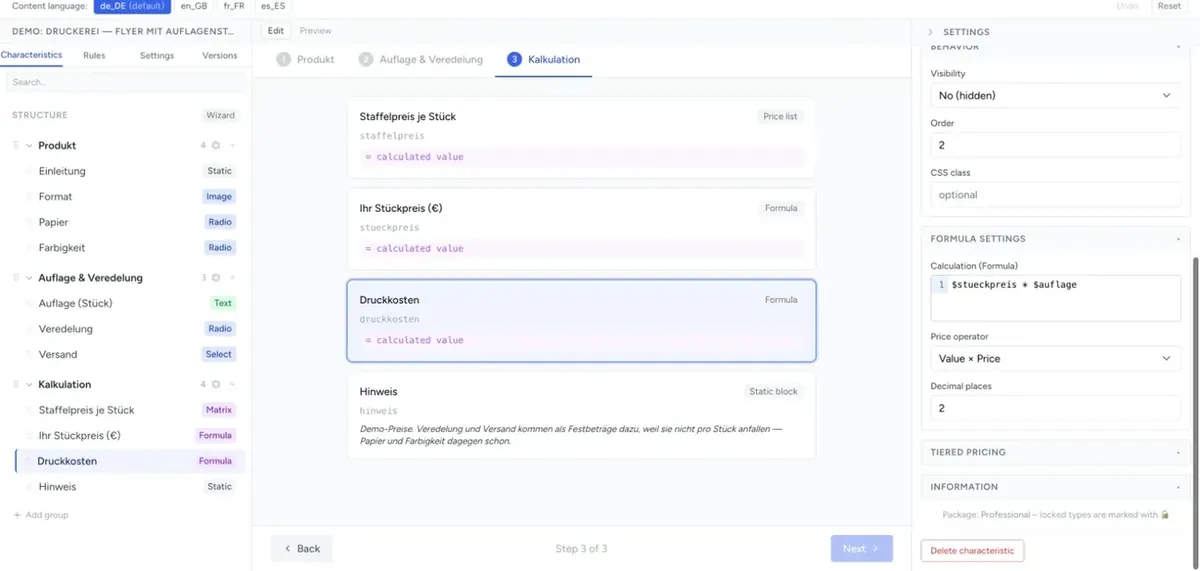
If the price depends on inputs, you calculate it with a characteristic of type Formula. You refer to characteristics through their Internal name (ID) with $:
$width * $height / 10000returns, for example, the area in m². With tiered pricing (price operator Value × Price, one tier >= 0 with the price per square metre) this becomes the price. Syntax, functions and examples: Formulas & Calculations.
Price matrices
If your prices are in a table – width × height, print run × format – you upload it as CSV into a characteristic of type Price list. You can also take the surcharges of a select characteristic's values from a table with Prices from matrix. Everything about it: Price Matrices from Excel/CSV.
Taxes
Tax rate and tax handling apply to the whole account: Settings → Localization.
| Setting | Meaning |
|---|---|
| Tax rate | The tax rate (in %) your prices in the configurator are maintained with, e.g. 19 |
| Prices include taxes | On: your prices already include tax (gross). Off: your prices are net. |
This is how the configurator calculates:
- In the HTML snippet prices are shown as you entered them.
- In a shop the plugin passes the product's tax rate. The configurator then converts your prices to this rate: gross prices are converted back to net with your Tax rate and then to gross again with the shop's rate. Net prices get the shop's rate added directly.
So maintain your prices the way you calculate them, and set Tax rate and Prices include taxes accordingly. If both rates are the same, gross prices don't change.
Troubleshooting
- A surcharge is not shown, but calculated – Display price is off, or the amount is 0 and Display if zero is off.
- A formula or price list contributes nothing to the price – the Tiered pricing is missing. Without a tier the contribution stays 0.
- The surcharge is 12 instead of 12.50, or 0 – the Price field contains a comma. Write
12.50. - The tiers calculate differently in the shop than in the preview – a tier has a condition other than
>=, and the preview and shop run with different engines. See Conditions and the frontend engine. - Quantities are not multiplied – check that the characteristic's Quantity setting is Free entry or Range, and publish the component.
- The price in the cart is too high – the shop adds its own product price (Magento with Legacy, Shopware). Set the product price in the shop to 0 if the configurator provides the whole price.
- The price is off by the tax – Tax rate or Prices include taxes under Settings → Localization don't match your prices or the shop's tax rate.
- Changes don't arrive in the shop – the shop shows the last published version.