Characteristics are the properties your customers set in the configurator – colour, width, material, drive. For a discrete characteristic they choose from fixed values (e.g. white, anthracite, RAL 7016); for free entry they type something themselves (e.g. 1200 mm). On top of that there are characteristics that calculate on their own or show content. This article explains all data types, all settings of a characteristic and of a value, and how to maintain many values at once via CSV.
Create a characteristic
- Open the component. On the left, in the Characteristics tab, you see the structure tree with groups and characteristics.
- If there is no group yet, click Add group at the bottom of the tree. Characteristics always live in a group.
- Click + (Add characteristic) on the group. A new characteristic of type Select is created and selected right away.
- On the right, under Basic settings, set the Label, the Internal name (ID), the Data category and the Data type.
- For discrete characteristics, add the values in the Values section.
Clicking a characteristic in the structure tree or in the middle column opens its settings on the right. If nothing is selected, the panel says “Select an option in the preview or structure tree”.
Data categories and data types
First choose the Data category, then the Data type within it. If you switch the category, the data type jumps to the first type your plan allows.
Discrete characteristic
The customer chooses from values you define.
| Data type | Display | Typical use |
|---|---|---|
| Select | Dropdown, one value | Colour, material – many values, little space |
| Multi-selection | List, several values at once | Accessories that can be combined |
| Radio buttons | All values visible, one value | A few values to compare at a glance |
| Checkbox | All values visible, several values at once | Extras to tick on and off |
| List with images | Values as images (optionally with label), one value | Fabrics, decors, shapes |
| Multiselect with quantity | Several values, one quantity per value | Quantities per variant, e.g. sizes |
| Autocomplete | Search field that suggests matching values; only an existing value can be chosen | Very long lists, e.g. article or type numbers |
Free entry
The customer enters something themselves.
| Data type | Display | Typical use |
|---|---|---|
| Small input field | Single-line field; restricted to numbers, text, email etc. with Allowed input | Dimensions, quantities, engraving text |
| Large input field | Multi-line text field | Notes, longer texts |
| Date | Date field with calendar | Delivery or preferred date |
Calculation
The configurator fills these characteristics itself – the customer enters nothing.
| Data type | What it does |
|---|---|
| Formula | Calculates a result from other characteristics, e.g. an area – see Formulas & Calculations |
| Price list | Reads a value from a table, e.g. width × height – see Price Matrices from Excel/CSV |
| Simple combination | Combines the values of several characteristics, e.g. as a sum, product or joined text |
| Product attribute | Takes a value from the shop product, e.g. a weight |
| Webservice | Fetches a value from an external address (URL) |
| Package | Switch that selects a predefined set of values in other characteristics |
Frontend
Content and actions without a selection of their own.
| Data type | What it does |
|---|---|
| Static field | Shows text, images or notes at its position in the configurator |
| File upload | The customer uploads files, e.g. a print template |
| Chart | Shows a chart. Its settings will follow in a later version. |
| Action button | Button for “Request a quote”, PDF or email – see The Action Button |
| Captcha (V3 only) | Protects an action button that sends emails against spam |
Plan and frontend engine
- Webservice, File upload, Chart and Package are only available in the Ultimate plan. In smaller plans they are marked 🔒 in the list, and the settings show which plan is active. An existing characteristic of a locked type stays in place and can still be edited.
- Autocomplete and Date with calendar only work with the Legacy frontend engine. In V3, autocomplete appears as a normal select list and the date as a plain text field.
- Captcha only works with the V3 frontend engine.
All differences: Frontend Engine: Legacy or V3.
The settings of a characteristic
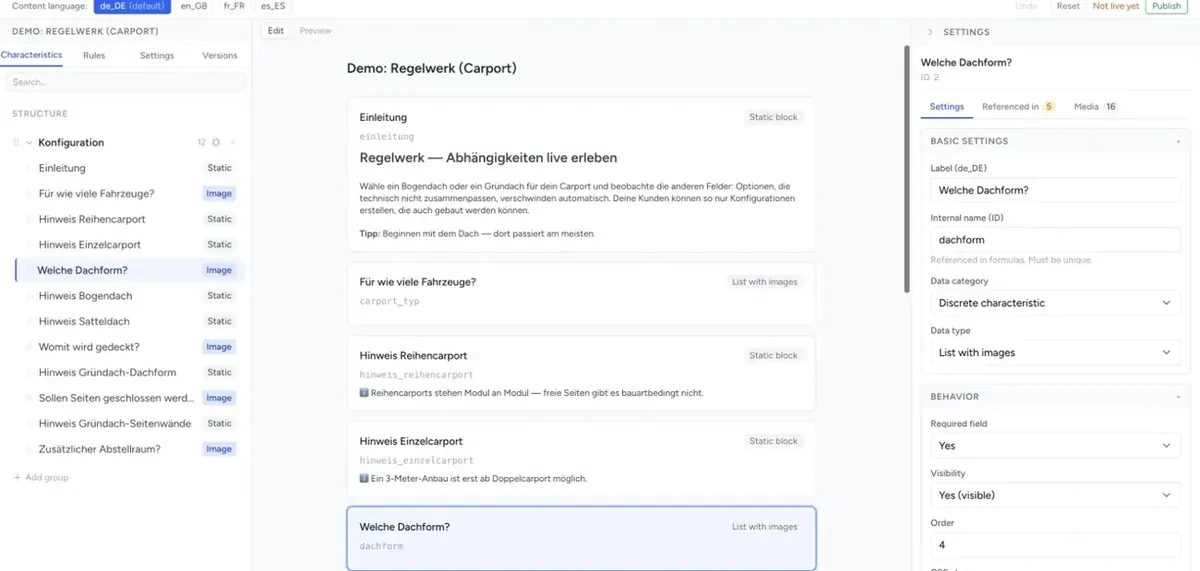
At the top right every characteristic has three tabs: Settings, Referenced in and Media. The Settings tab contains the sections – which ones you see depends on the data type.
Basic settings
| Field | Meaning |
|---|---|
| Label | What your customers see. Maintained per content language. |
| Internal name (ID) | Unique name that formulas, rules, combinations and price lists use to refer to the characteristic, e.g. width. If you rename it, references to this characteristic follow along. |
| Data category | Discrete characteristic, Free entry, Calculation or Frontend |
| Data type | The concrete display within the category (see above) |
Behavior
| Field | Meaning |
|---|---|
| Required field | Yes: the customer has to select or enter something. Not shown for types the customer does not fill in (e.g. Formula, Static field). |
| Visibility | Yes (visible): in the configurator and in the summary. No (hidden): visible nowhere, but still part of the calculation – typical for helper formulas and price lists. Shop only: in the configurator, but not in the summary. Backend only: not in the configurator, but in the summary and therefore in the order. |
| Sort order | Position within the group. Easier: move the characteristic in the structure tree (see below). |
| CSS class | Your own CSS class for individual styling |
Selection settings (discrete characteristics)
| Field | Meaning |
|---|---|
| Default value | Value that is already selected when the configurator opens. No default leaves the characteristic empty. |
| Article number | Article number of the characteristic, e.g. for part lists in the shop |
| Image sort order | Layer in the combined product image: images with a higher number lie on top of images with a lower one |
| Quantity | Only for Select, Radio buttons, Checkbox, List with images and Multiselect with quantity: No, Free entry or Range. With Free entry and Range you set Min. quantity and Max. quantity. The customer sees a quantity field in front of the value (for Checkbox one per ticked value), and the surcharge is multiplied by the quantity. |
| Tooltip for values | Only for Radio buttons and Checkbox: shows a value's information as a tooltip |
Combination & Display (discrete characteristics)
| Field | Meaning |
|---|---|
| Combination | Yes combines this characteristic with other characteristics into one result. Combined values, Value operator (+, *, String, Formula), Price operator and Decimal places then appear. |
| Prices from matrix | Yes takes the surcharges of the values from a price list, e.g. depending on the size – see Price Matrices from Excel/CSV |
| Images for values | Whether the values' images are shown: Hide, On selection or – only for Radio buttons and Checkbox – Always |
| Display | Only for List with images: Only images or Image with label |
| Style | Only for List with images: Inline, Collapsible or Overlay |
| Autocomplete – search by | Only for Autocomplete: search in Label, Value or Both |
| Autocomplete – entry template | Only for Autocomplete: how a suggestion is shown, e.g. {{label}} ({{value}}) |
Text field settings (Small input field, Date)
Allowed input restricts what the customer may type: No restriction, Number, Integer, Greater than zero, Zero or greater, Letters, Lowercase, Uppercase, Code (a-z, 0-9, _), Letters, digits, _, Letters & digits, Postal code, Phone number, E-Mail, URI, IBAN, BIC and VAT ID.
| Field | Meaning |
|---|---|
| Min. value, Max. value, Exact value | For numbers: the allowed range or exactly one allowed value. With Greater than zero and Zero or greater there is no minimum value. |
| Min. character length, Max. character length | For letter and code inputs |
| Default value | Pre-filled content, per content language |
| Show default value as | Show as default value (real content that is used) or Show as placeholder (grey hint that disappears when typing) |
For Date you get Allow past days, Date restriction (Allow all days or Disable weekdays with Disabled weekdays) and Next possible date as Default value instead.
The Large input field has Min. character length, Max. character length, Default value and Show default value as in the Textarea settings section.
Settings of the other types
| Data type | Section | What you set |
|---|---|---|
| Formula | Formula settings, Tiered pricing | Calculation (Formula), Decimal places, Price operator – see Formulas & Calculations and Set Up Pricing |
| Price list | Matrix settings, Matrix data, Tiered pricing | See Price Matrices from Excel/CSV |
| Simple combination | Combination settings, Tiered pricing | Combined values, Value operator, Price operator, Min. value, Max. value, Decimal places |
| Product attribute | Product attribute settings | Which Product attribute of the shop product is used |
| Webservice | Webservice settings | Webservice URL (a fixed address, fetched once on load – there are no placeholders for characteristic values) and Return format (JSON with JSPath or XML with XPath) |
| File upload | Upload settings | Allowed file types, Max. file size (MB), Min. files, Max. files |
| Static field | Content | Text with formatting, images and links |
| Action button | Button settings | See The Action Button |
| Captcha (V3 only) | Captcha settings | Captcha provider and Captcha complexity (Easy (fast verification), Medium (default), Hard (slower, more spam-resistant)) |
Image, Information, Custom fields
- Image: An image for the characteristic itself, e.g. a dimension sketch next to the input field. Where it appears is set in the component settings. More: Image Visualisation & Uploading Images.
- Information and Additional information: Formatted notes about the characteristic, per content language.
- Custom fields: only appear if you created them for the component.
Create and edit values
Discrete characteristics have the Values section at the bottom, with the number of values.
- + Value creates a new value and opens it.
- + Group creates a value group – use it to structure long lists, e.g. colours by colour family. Inside a group, add values with + Value on the group.
- The search field finds values in long lists.
- Delete all choices and groups (trash can) empties the list after a confirmation.
Clicking a value opens its settings; the arrow at the top left takes you back to the characteristic.
| Section | Field | Meaning |
|---|---|---|
| Basic settings | Label | What the customer sees, per content language, e.g. “Anthracite” |
| Value | Internal value, e.g. anthracite. Rules, formulas and price lists use this value – not the label. |
|
| Price | Surcharge when the customer chooses this value, e.g. 15 |
|
| Article number | Optional, e.g. for part lists in the shop | |
| Sort order | Position in the list | |
| Thumbnail | Small image next to the value, with width and height in pixels | |
| Image | Layer for the combined product image, with X/Y offset. For a 360° view the section is called 360° images. | |
| Information | Information, Additional information | Notes about the value |
| Custom fields | Only if created for the component |
How surcharges are displayed in the configurator (absolute or relative, with which price pattern) is set for the whole component – see Create Your First Component.
Import and export values
With many values it is more convenient to maintain the list in Excel.
- Click ↓ Export values. You get a CSV file with all values. If values have images, you get a ZIP file with the CSV and the images.
- Edit the file and save it as CSV again (or pack it into a ZIP together with the images).
- Click ↑ Import values and select the file.
- Choose how the imported values are applied: Delete old choices replaces the list, Merge choices appends the imported values to the existing ones.
- Check the result and save the component.
The CSV has these columns, separated by commas:
| Column | Content |
|---|---|
type |
value for a value, group for a value group |
group_id |
Number of the group a value belongs to; 0 = no group |
id |
Identifier of the value – leave empty for new values |
alt_title |
Internal name (only relevant for groups) |
value |
The internal Value |
price |
Surcharge |
sort_order |
Sort order |
thumbnail_filelink, thumbnail_original, image_filelink, image_original |
File names of thumbnail and image (for the ZIP import) |
title_de_DE, title_en_US, … |
Label per language |
info_…, additional_info_… |
Information and additional information per language |
The easiest way is to export a characteristic with one or two values first and use the file as a template. The values' Article number is not included in the export and has to be maintained by hand after an import.
The AI assistant can also create values from data sheets or tables – see AI Agent: Import Product Data.
Change the order
In the structure tree you move characteristics by drag & drop – within a group and into another group. Groups can be moved the same way. The order in the tree is the order in the configurator. How groups are displayed (no groups, tabs, accordion, wizard) is explained in Feature Groups & Display Modes.
Referenced in and Media
- Referenced in shows where the characteristic is used – grouped by Rules, Formulas, Combinations and Price matrices. A click jumps to the respective place. The number on the tab tells you how many references there are.
- Media shows all images of the component at a glance. A click opens the characteristic the image belongs to.
Delete a characteristic
Delete this characteristic is at the very bottom of the settings. If the characteristic is still used in rules, formulas, combinations or price lists, the confirmation lists these places – the references are reset on deletion. With Yes, delete or Delete anyway the characteristic is deleted immediately and permanently. In the shop it disappears after the next Publish.
Single values are deleted in the value list. Here too the admin warns you if rules use the value.
Troubleshooting
- I can't find a button for a new characteristic – characteristics need a group. First Add group, then + on the group.
- A data type can't be selected (🔒) – it belongs to the Ultimate plan.
- A formula or rule doesn't find the characteristic – they use the Internal name (ID), not the label. Check the spelling and look under Referenced in whether the link exists.
- A rule or price list doesn't match a value – it compares the Value, not the label. “Anthracite” with the value
ral7016must appear in the rule asral7016. - The characteristic is missing in the configurator – check the Visibility (No (hidden) and Backend only hide it) and whether a rule hides it.
- Autocomplete or the date calendar looks different in the shop – the component runs with the V3 frontend engine, which supports neither. See Frontend Engine: Legacy or V3.
- The import reports “The uploaded file contains errors” – the file must use commas as separators and the column names in the first row. Export a characteristic as a template.
- Changes don't show up in the shop – save and publish.