Not every characteristic asks the customer something. Characteristics of the Calculation data category determine a value themselves – from a formula, a table, other characteristics, the shop product or an external address. You display this value, use it further in formulas and rules, or turn it into a price. This article introduces the six data types and shows when to use which.
The six data types at a glance
You choose the data type in the characteristic's basic settings under Calculation:
| Data type | Result | Typical use | Can form a price |
|---|---|---|---|
| Formula | Number or text from an expression | Area, weight, price by your own logic | yes, via Tiered pricing |
| Price list | Value from a table | Price by width × height | yes, via Tiered pricing |
| Simple combination | Sum, product or text from other characteristics | Total length, composite item name | yes, via Tiered pricing |
| Product attribute | Field of the shop product | Weight or base dimension from the shop | only via a formula |
| Webservice | Value from an external address | Daily rate, material price from another system | only via a formula |
| Package | Switch that selects values in other characteristics | “Comfort” equipment package | yes, with its own package price |
Webservice and Package are only available in the Ultimate plan – see Add characteristics & values.
Calculation characteristics are not required fields – they don't have the Required field switch. What the customer sees of them is controlled via Visibility: Yes (visible) shows the result as text, No (hidden) calculates in the background. For helper values that only feed other characteristics, hidden is the usual choice.
From result to price
Formula, price list and simple combination initially only deliver a value. It becomes a price via the Tiered pricing section and the Price operator field:
| Price operator | What goes into the price |
|---|---|
| Price | The price of the matching tier |
| Value × Price | The result multiplied by the price of the matching tier |
Without a tier, nothing goes into the price. If the result itself is already the price, create a tier with condition >=, value 0 and price 1, and choose Value × Price. If the tier is missing although a price operator is set, the check before publishing warns you. In detail with examples: Formulas & Calculations and Set Up Pricing.
Product attribute and webservice have no tiered pricing. You pull their value into a formula with $name and turn it into a price there.
Formula
The Formula is the most versatile calculation characteristic: under Formula settings you write an expression such as $breite * $hoehe / 10000 in the Calculation (Formula) field. Price operator and Decimal places belong to it as well.
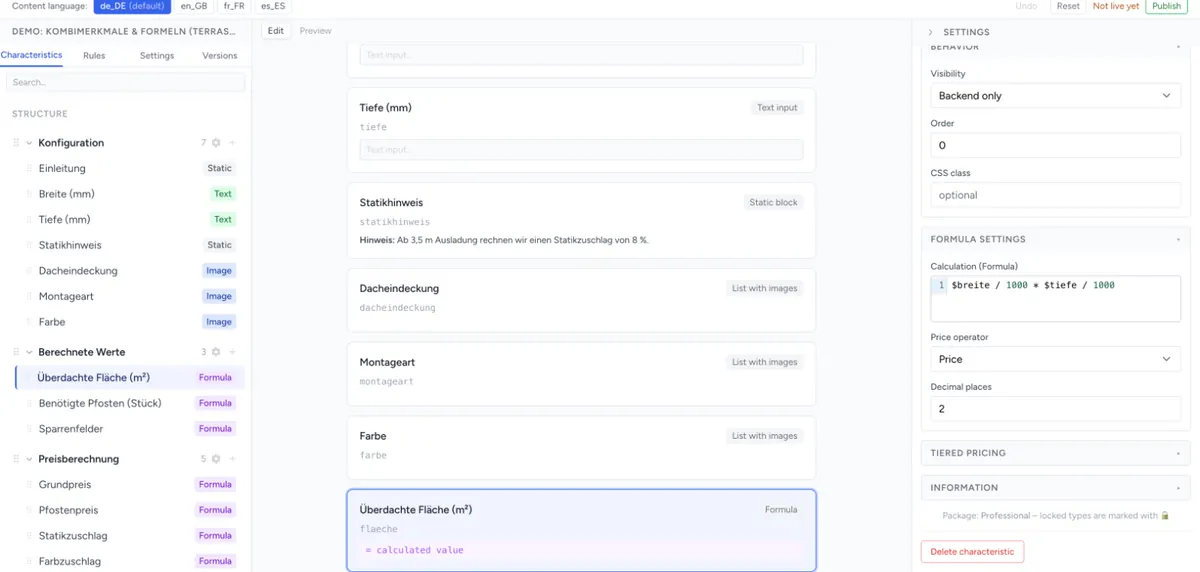
Syntax, functions, empty fields and practical examples are described in Formulas & Calculations.
Price list
The Price list looks up a value in a table – for example the price for 120 cm width and 200 cm height. It has the sections Matrix settings (which characteristics determine the row and the column, how to search) and Matrix data (the tables themselves) as well as Tiered pricing.
Everything about the table format, operators and several tables: Price Matrices from Excel/CSV.
Simple combination
The Simple combination links several characteristics without a formula. Under Combination settings you set:
| Field | Meaning |
|---|---|
| Combined values | The characteristics whose values are linked |
| Value operator | + (Addition) adds the values, * (Multiplication) multiplies them, String joins them as text |
| Price operator | As for the formula: Price or Value × Price |
| Decimal places | Decimal places of the result |
From a selection characteristic, the Value of the selected value goes in, not its label. For “width + allowance”, the values must therefore be numbers, e.g. 120.
Keep in mind:
- With + and *, all combined characteristics must deliver a number. If one is empty or text, the combination has no result.
- A result from String is text. It is suitable for display and the order, but not for a price.
- The value operator Formula delivers no result in either engine. If you need a calculation, use the Formula data type.
- Min. value and Max. value do not limit the result.
Discrete characteristics such as Select or Radio buttons have their own Combination switch under Combination & Display. It links the characteristic itself with others – that is something different from the Simple combination data type.
Product attribute
The Product attribute takes over a value from the product in the shop. Under Product attribute settings, enter the attribute's code in the Product attribute field, e.g. weight.
Where this works:
| Integration and engine | Result |
|---|---|
| Magento 2 with Legacy | The value of the attribute on the product, via the attribute code from Magento |
| Magento 2 with V3 | The value of the attribute on the product, from version 5.0.0-beta18 of the Magento extension |
| PrestaShop 9 (always V3) | A field of the product, a feature or an attribute of the chosen combination – see Installing the PrestaShop Plugin |
| Shopware 6, Shopify, HTML snippet | Empty |
The characteristic takes numbers over as numbers so that a formula can calculate with them. There is no shop product in the admin preview – the characteristic stays empty there too. If a formula calculates with the attribute, check it in the shop. More about the engines: Frontend engine: Legacy or V3.
Webservice
The Webservice fetches a value from an external address when the configurator loads. Under Webservice settings you find:
| Field | Meaning |
|---|---|
| Webservice URL | The complete address, e.g. https://api.example.com/rate |
| Return format | JSON or XML |
| JSPath / XPath | Where the value is in the response, e.g. $.data.value for JSON or //root/item for XML. Leaving it empty takes the whole response. |
This is how the webservice works:
- The address is fetched once when loading, not with every selection. You cannot insert values from the configurator into the address.
- The request runs via the configento.app server. Your interface therefore does not need to allow browser access (CORS), but it must be publicly reachable.
- The result is available in formulas as
$name. As long as the response is missing, the value is empty. - For JSON, V3 understands simple paths such as
$.data.value,data.items[0].priceordata["price"]. Filters and search expressions are only known to the Legacy engine.
Package
The Package is a switch for the customer. When they switch it on, defined values are selected in other characteristics; when they switch it off, they are deselected again. A package can have its own package price.
You set both in the characteristic's settings: under Package price you enter the surcharge that applies while the package is switched on. Under Add characteristic to package you pick a characteristic and, within it, the values the package selects – for every characteristic that belongs to the package. The assignment is kept when you reorder characteristics later.
Differences between the engines
| Topic | Legacy | V3 |
|---|---|---|
| Decimal places for formula and combination | Rounds the result and continues calculating with the rounded value | Only rounds the display |
| Product attribute | Works in Magento 2 | Works in Magento 2 from version 5.0.0-beta18 of the extension and in PrestaShop 9 |
| Webservice path for JSON | Full JSONPath | Simple paths |
More: Frontend engine: Legacy or V3.
Troubleshooting
- The result does not count towards the price – the Tiered pricing is missing. Create a tier (
>=, value0, price1) and choose Value × Price. - The combination shows nothing – one of the Combined values is empty or not a number, or Formula is selected as the Value operator.
- The product attribute stays empty – it only works in Magento 2 (with V3 from version 5.0.0-beta18 of the extension) and in PrestaShop 9, not in the preview. Also check the attribute code.
- The webservice delivers no value – open the address in the browser and check whether the response really is JSON or XML and whether the path matches the structure. In V3, only simple JSON paths work.
- Values differ by a few cents – the Legacy engine rounds via Decimal places, V3 does not. Round in the formula itself, see Formulas & Calculations.
- A calculation characteristic does not appear in the configurator – the Visibility is set to No (hidden), or a rule hides it.