Every component exists in two states: the draft you work on in the admin, and the published version your shops show. Saving only changes the draft – Publish is what brings it to the shop. This article explains how saving, preview, publishing and versions work together – and how to get back to an earlier state safely.
The two states of a component
| State | Who sees it | How it changes |
|---|---|---|
| Draft | You, in the editor and in the Preview | With every Save – changes made by the AI assistant also land here |
| Published version | Your customers in the shop – in Magento, Shopware, Shopify and the HTML snippet | Only with Publish |
As long as the two differ, Not live yet appears at the top right of the editor. Hovering over it shows: “Shops still show the last published version until you publish.”
So you can rebuild and test at your own pace and only release once everything is right – your customers notice nothing until then.
Saving
As soon as you change something, the Save button appears above the right-hand area; on the Rules tab it also shows the note Unsaved changes.
- Save writes your state to the draft and creates a new version (see Versions).
- Undo at the top right reverts the last change, several times in a row if needed. This only applies to the current session: after reloading the page the history is empty – from then on you go back via the versions.
- The admin does not save automatically. If you try to leave the editor with unsaved changes, it asks “You have unsaved changes. Leave the editor anyway?” – when you close the browser tab, the browser itself asks.
The admin does not check the component when saving. It only reports errors when you publish.
Preview
The preview shows the configurator the way your customers will see it – with the configured frontend engine, but with the saved draft instead of the published version. This lets you test changes before they go live.
- In the middle column, switch from Edit to Preview.
- If you have unsaved changes, the admin asks: “Save current state before opening preview? Otherwise the last saved version will be shown.” If you confirm, it saves first.
- If you keep editing afterwards, the preview shows the note Preview shows last saved version. Save to see your changes. Save and reload with ↺ (Refresh preview).
More options:
- Language: If your account has several languages active, choose at the top of the preview which language you want to see the configurator in.
- Move to separate window: opens the preview in its own window and makes the editor wider. The window reloads by itself after every save in the editor.
- Show and hide areas: In the bar above the preview you switch Total price, Combined product image (if the component has one) and Summary on or off. These switches only affect the preview, not the shop.
- Combined article number (V3 only): shows the article number of the configured product next to the total price, e.g.
CL-W-GR– built from the article numbers of the selected values. This lets you check which number goes into the cart, even when it is switched off in the summary. Off by default. More in Component settings.
The preview needs the HTML5 integration. If it is switched off, you see a note to enable it under Settings → Integrations instead.
Publishing
The Publish button at the top right appears as soon as there is something to publish – always for a new component.
- Click Publish. The admin saves unsaved changes first.
- The Publish component? dialog checks the component (Validating…):
- Publish blocked — errors must be fixed: – for example a price list characteristic without matrix settings. Yes, publish stays disabled until you have fixed the error.
- Warnings (publish still allowed): – for example an empty formula, an internal name used twice or an email button without a captcha.
- Confirm with Yes, publish. The dialog reminds you: you can restore an earlier version under Versions at any time and publish it again.
Publishing component then opens and shows the progress. New images are transferred as well; for large components with many images this takes a moment. You can leave the page – publishing continues in the background. If you open the component again in the meantime, the editor shows the progress again.
Once everything is done, Not live yet disappears and all shops show the new version.
The first publish
A new component that has never been published carries the Local badge in the overview and shows ID — instead of a number. On its first publish it receives its final ID, and the editor switches to the new address automatically.
Only with this ID can you assign the component to a product in your shop – see Magento plugin, Shopware plugin, Shopify plugin or HTML snippet.
When publishing fails
If publishing fails, the dialog reports: “Publish failed — your local draft is unchanged. Fix the issue below and try again.” Failed uploads lists images that could not be transferred. Your draft is kept, and the shops keep showing the previous version.
SVG images: The classic cloud only accepts JPEG, PNG, BMP and GIF. SVG images are therefore not transferred there – the dialog reports SVG images stay in the V3 configurator. They appear normally in V3; only Legacy cannot load them.
Back to the published version
To discard all changes since the last publish, click Reset at the top right and confirm Reset to published version? with Yes, reset. The draft is replaced by the published version. This cannot be undone – not even with Undo.
A component that has never been published does not have this button.
Versions
The Versions tab shows the component's Version history, newest version at the top.
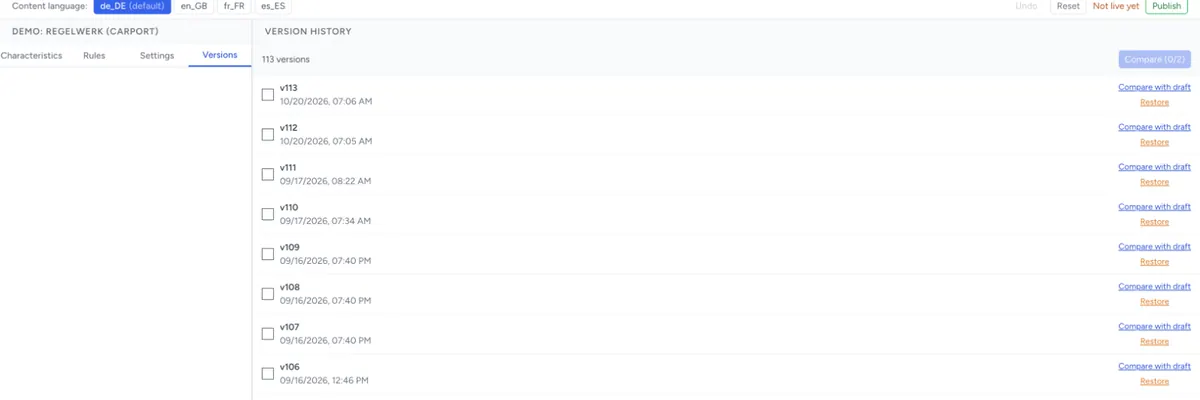
- Every save creates a version, as does every change by the AI assistant and every restore.
- Every publish creates its own version marked Published – exactly the state the shops have received since.
- Versions are kept until you delete the component.
If there is no version yet, it says No versions yet — save the component to create one.
Comparing
| Action | What it shows |
|---|---|
| Compare with draft | The selected version against your Current draft |
| Tick two versions, then Compare | The older against the newer of the two. If you tick a third, the one you chose first drops out. |
The comparison lists the differences by area – component (Top level), groups, characteristics, rules. Use Jump to to move between the areas. If both states are the same, it says No differences.
Send diff to AI hands the comparison to the AI assistant, which can then explain what has changed.
A typical use: before publishing, open the last published version with Compare with draft – this shows you exactly what is about to go live.
Restoring
- Click Restore next to the version you want.
- Confirm “Restore this version? Your current draft will be overwritten.”
The draft now has the state of this version, and a new version is created. So a restore can itself be undone by restoring the previous version. Unsaved changes are lost in the process.
The restored state only appears in the shop after you Publish. This is how you undo a publish that went wrong: restore the last good Published version and publish again.
Several people working on one component
The admin does not lock a component while someone is editing it. If two people save one after the other, whatever was saved last applies – the other person's changes can then only be found in the versions.
When publishing, the admin also checks whether the component was changed in the cloud since the editor was opened, for example in the old admin. In that case Concurrent edit detected! appears. If you publish anyway, you overwrite those changes. This check does not catch every case – for example, it never catches changes another person saved in the admin but has not published yet.
So agree on who is working on a component at any given time. If you have left a component open for a long time, reload it before you carry on.
Building blocks: publishing for many components
If several components use the same building block – a centrally maintained price table or tier list – you change it under Building blocks in the main navigation. When saving, Publish affected components decides whether the linked components are published right away.
Components with unpublished changes of their own are only updated in the draft – otherwise those changes would go live without being asked. The admin lists them afterwards; you publish them once their own changes are ready.
Troubleshooting
- My change doesn't show in the shop – you only saved. If Not live yet appears at the top, click Publish.
- The preview doesn't show my change – the preview shows the saved state. Save and click ↺.
- Yes, publish is greyed out – the dialog lists an error under Publish blocked. Fix it, save and open the dialog again.
- The preview stays empty with a note about HTML5 – enable the integration under Settings → Integrations (see Global settings).
- A colleague's change has disappeared – you saved at the same time. Open Versions, compare their version with the draft and add the missing changes, or restore their version.
- The component is missing in the shop although it is published – the shop needs the final ID. Check in the overview whether the component is still Local, and whether the product has the right ID assigned.
- The combined article number doesn't appear in the preview – the component runs on Legacy, or neither the selected values nor the characteristics have an article number.