The AI assistant builds configurators via chat: you describe your product, and it creates groups, characteristics, values, price tables and rules. It also answers questions about an existing component, explains formulas and compares versions. This article shows how to use the assistant, what it can and can't do and how to check the result.
Requirements
The assistant is switched on for every account unless you switch it off. You'll find the switches in the admin under Settings → AI:
- AI assistant – when switched off, the AI panel disappears and no data is sent to the AI provider (Anthropic). You can switch it back on at any time.
- AI model – Economical, Standard or Maximum. More capable models give better answers and consume more tokens. See Choosing the AI model.
Every request consumes AI tokens from your plan's allowance.
Using the assistant
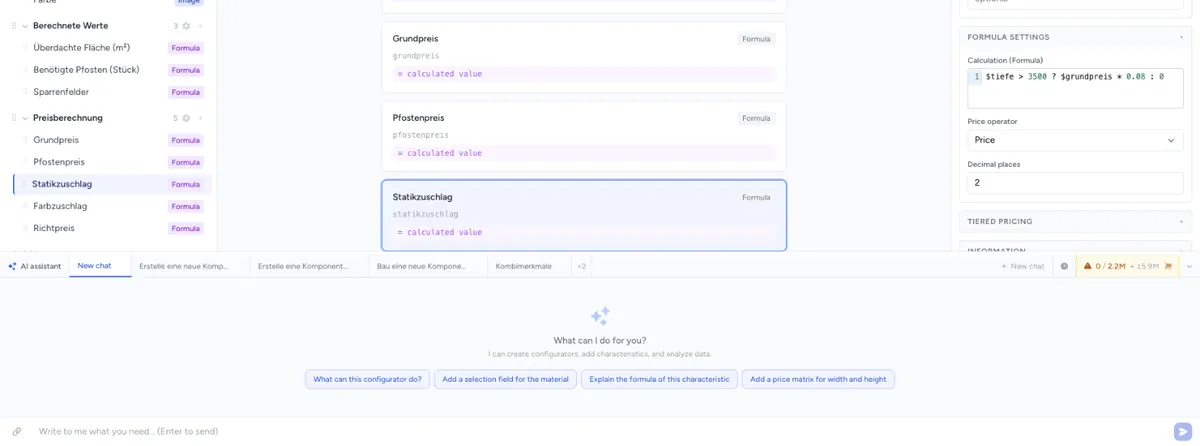
The AI panel sits at the bottom of the admin, on every page. From left to right, the bar shows:
| Element | What it does |
|---|---|
| AI assistant | Name of the panel. While the assistant is working, working… appears next to it. |
| Chat tabs | Your most recently used chats, up to five. You reach other chats through the history. |
| New chat | Starts an empty chat. |
| Clock icon (Chat history) | Shows all chats with date and preview. Use Search chats… to find an old chat. |
| Token display | Your current token balance |
| Arrow | Expand or Collapse. Drag the top edge to change the panel height. |
Right-clicking a chat tab or an entry in the history offers Rename and Delete. New chats are named after the beginning of your first message.
Attention: the × on a chat tab doesn't just close the chat, it deletes it – without asking. It's then gone from the history as well.
Your chats are private: team members don't see them. If you switch to another service order in the portal, you see that order's chats.
Writing a message
Type your request into the field Write to me what you need… and press Enter. An empty chat offers suggestions, in the editor for example "What can this configurator do?" or "Add a price matrix for width and height". One click copies the suggestion into the input field.
While the assistant is working, small notes below its answer show which step it's running. Stop generating stops it.
Where you open the chat matters
| Where | What the assistant may do |
|---|---|
| In the editor of a component | It changes only this component. It can read other components, for example to compare them, but not change them. |
| On all other pages, e.g. the component overview | It creates new components. Before it changes an existing one, it asks you which one to use. |
When the assistant creates a new component, the admin then opens it in the editor.
What the assistant can do
| Area | What it creates, changes or deletes |
|---|---|
| Components | Create a new component with a title, list all components |
| Groups | Create, rename, delete |
| Characteristics | Create with every data type, change settings, change the order, delete; attach an image you added in the chat to the characteristic |
| Values | Create, rename, change the internal value and the surcharge, delete |
| Formulas | Write and explain formulas |
| Price matrices | Create a price list characteristic, upload the table, set dimensions and operators |
| Tiered pricing | Set all tiers of a tiered price |
| Rules | Create, change, move and delete rules and rule groups; show which rules affect a characteristic or a value |
| Action button | Set up the action – Custom URL, Generate PDF, Send email, Send email with PDF – with subject, text and PDF template |
| Custom CSS and JavaScript | Read and extend the component's custom CSS and JavaScript |
| Comparing | Compare two versions or two components, e.g. "What has changed since the last publish?" |
| How-to questions | Answer questions such as “Where do I set the frontend engine?” from this documentation – in the language you use the admin in – and link the matching article |
What it can't do
- Publish. That's always your step – see Check and publish the result.
- Change building blocks. If a price list or tiered price is linked as a building block, it refuses the change. Change the building block under Building blocks.
- Set up images on values and the combined product image. It can set an image on the characteristic itself.
- Maintain SKUs of values.
- Change the component settings, e.g. layout, wizard or frontend engine, or group settings other than the name.
- Import value CSVs – use ↑ Import values in the editor for that, see Add Characteristics & Values.
Attaching files
Use the paperclip (Attach file (PDF, image, Markdown, text)) or drag and drop into the chat to give the assistant files:
| Allowed | Up to 10 MB per file |
|---|---|
| e.g. data sheets, price lists, catalogues | |
| Images | JPG, PNG, GIF, WebP – e.g. a sketch or an image for a characteristic |
| Text | .txt, .md |
The chat doesn't accept CSV and Excel files. Copy the content into the chat as text or save the file as .txt. How best to do that is described in AI Agent: Import Product Data.
Attached files remain available to the assistant for 24 hours. Large PDFs and images consume noticeably more tokens than text.
An example step by step
1. Create the component – in the component overview:
Create a new component "Roller shutter". Width and height in cm as input fields (width 50–400, height 50–350), colour as a selection with white, anthracite, brown and custom RAL colour (+€45), drive as a selection with manual, electric 230 V (+€120) and solar (+€180).
2. Hand over the price table – in the editor of the new component:
Here is my price table. Columns are the width, rows the height, prices in euros. For in-between sizes, round up to the next size in the table. (paste the table as text)
3. Describe the rules:
With the solar drive, white should not be selectable. If the width is over 300 cm, manual is not possible.
4. Refine:
Rename "custom RAL colour" to "RAL of your choice". Add a checkbox "Measuring service" with a €49 surcharge.
More examples for rules: AI Agent: Define Rules via Chat.
Check and publish the result
Every change the assistant makes goes straight into the component's draft – not into the shop. If the editor of this component is open, it reloads the new state automatically.
- Check in the editor: are the characteristics, data types, values and surcharges right? Are the rules in the Rules tab what you meant?
- Test in the preview: switch to Preview and go through a few typical configurations – especially prices and rules.
- Roll back if needed: Undo resets the editor to the state before the assistant's last answer; save afterwards so the draft reflects it too. You can restore older states in the Versions tab with Restore.
- Publish: only when everything is right, click Publish.
If you have unsaved changes in the editor, save them before you let the assistant work on the same component. Otherwise its state replaces your changes; Undo brings them back.
If a change would break the component – e.g. a price list without a table configuration – the assistant reverts it itself and reports the error in the chat.
Having versions compared
In the Versions tab you can Compare two states. Send diff to AI hands the result to the assistant, and you can ask it, for example, whether a change affects prices.
What the assistant remembers
When you explain something the assistant should know in future – such as a technical term from your industry or a naming convention – it asks in the chat: Should I remember this?
- Yes, remember saves the item,
- Adjust lets you edit the text first (Save and remember),
- No, forget discards it.
It uses confirmed items in every new chat of this service order – for your team members too. Under Settings → AI, in the section What we know about you, you see all remembered items and can Adjust or Forget them. See Global Settings.
Tips for good results
- Be specific: instead of "various sizes", say "50, 100, 150 and 200 cm". Include the surcharges right away.
- Work in steps: first the characteristics, then prices, then rules. Check briefly in the editor after each step.
- Use the names shown in the editor: refer to characteristics and values by their label, e.g. "the characteristic Drive".
- One topic per chat: in long chats the assistant forgets the oldest messages. Start a New chat for a new topic – that also saves tokens.
- Answer follow-up questions: if something is unclear, the assistant asks. A short answer is cheaper than a correction.
- Pick the right model: Economical is enough for simple characteristics and small changes; for extensive rules and pricing logic use Standard or Maximum.
Troubleshooting
- The AI panel is missing – the assistant is switched off under Settings → AI.
- The assistant won't change another component – in the editor it may only change the open component. Open the other component or go to the component overview.
- The file can't be attached – only PDF, images,
.txtand.mdup to 10 MB. Paste CSV and Excel content as text. - The shop doesn't show the changes – the assistant doesn't publish. Click Publish in the editor.
- The price table returns no price – check under Matrix settings in the characteristic that the dimensions point to the right characteristics, and test in the preview. See Price Matrices from Excel/CSV.
- A chat has disappeared – the × on the chat tab deletes the chat permanently.
- The token balance is negative – see AI Tokens.