Images show your customers what they are configuring. configento.app has three kinds: an image on the characteristic, a thumbnail on the value for selection, and the combined product image, assembled layer by layer from the images of the selected values – optionally as a rotatable 360° view.
Which kind of image do you need?
| You want to … | Then use … |
|---|---|
| show an explanatory image next to a characteristic, e.g. a sketch “How to measure the width” | the image on the characteristic |
| let your customers pick values via small images, e.g. colour swatches | the Thumbnail on the value |
| assemble the finished product from the selected values, e.g. frame + fabric + drive | the combined product image |
| show the assembled product so it can be rotated | the 360° combined image (Legacy only) |
Image on the characteristic
- Select the characteristic in the structure tree.
- On the right, open the Image section and upload the image.
Where the image sits next to the characteristic is set for the whole component: Settings tab → General → Option image position → Left, Right or Do not show.
An image on the characteristic is available for selection characteristics, input fields, static fields, product attribute and package.
Images on values
Clicking a value in the Values section opens its settings. There are two image fields there:
| Section | Purpose | Additional fields |
|---|---|---|
| Thumbnail | The small image the customer uses to select the value – especially with the data type List with images | W (px) and H (px): display size of the thumbnail (Legacy only) |
| Image | The layer for the combined product image | Offset X and Offset Y: shift of the layer in pixels (Legacy only) |
If the combined product image is set to 360°, the Image section is called 360° images instead and takes a whole image sequence (see below).
The combined product image
Instead of taking a separate photo for every combination, you create one layer for each value. The configurator stacks the layers of the selected values on top of each other.
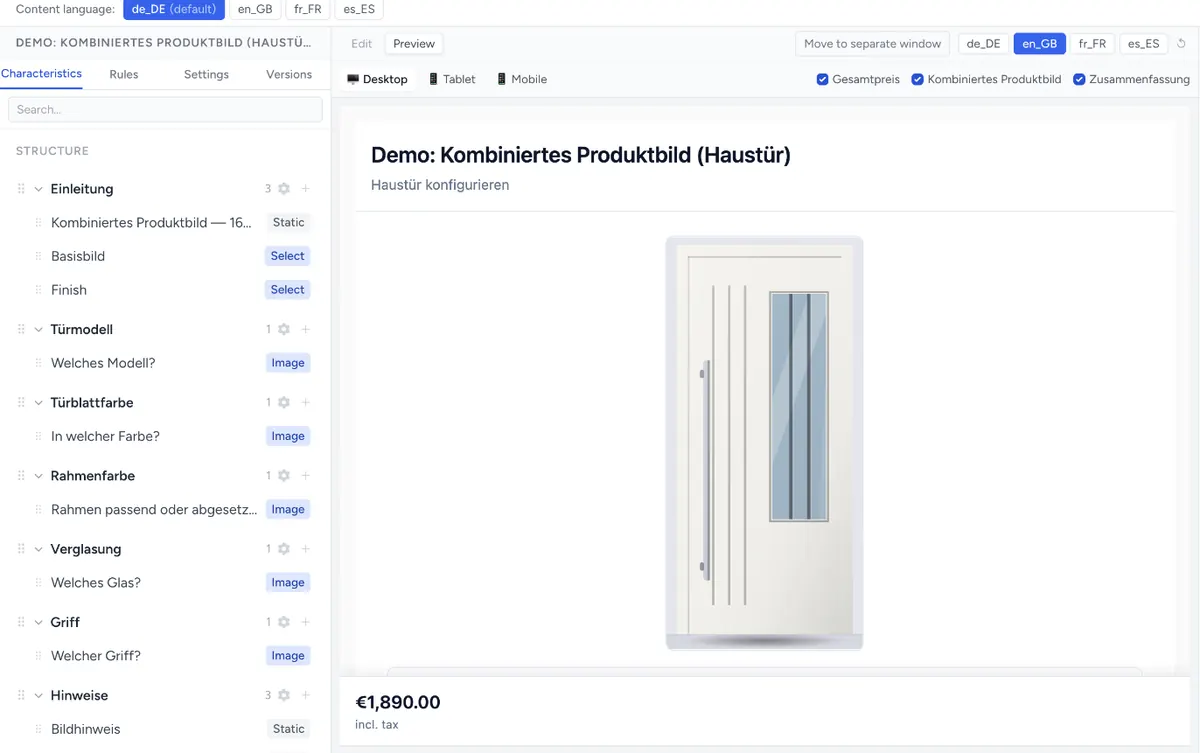
Example patio roof:
| Characteristic | Image order | Layers of the values |
|---|---|---|
| Frame | 1 | Frame anthracite, frame white |
| Roofing | 2 | Clear glass, frosted glass, multi-wall sheets |
| Side wall | 3 | none (no image), sliding glass wall |
Setting it up
- Turn on the combined image: Settings tab → General → Combined product image section → Combined image = Combined product image.
- On every value that should be visible in the image, upload its layer in the Image section.
- Define the stacking order: on the characteristic in the Image order field. Characteristics with a smaller number lie below, those with a larger number on top.
- Check the result in the preview.
Making the layers fit
- All layers have the same image size and the same framing.
- Everything except the actual part is transparent – use PNG or WebP with transparency; SVG works as well.
- The bottom layer (usually the base frame) covers the whole background.
- A value without an image contributes nothing to the overall image – handy for “none”.
Where the image appears in the shop
Where the combined image sits on the product page depends on the integration. In Magento and Shopware you enter a CSS selector for the image area in the plugin settings, see Install Magento Plugin and Install Shopware Plugin.
The image in the PDF and the email
With the placeholder {{combined_image}} you insert the current product image into the PDF or email of the action button. This only works with the frontend engine V3 – in Legacy the placeholder stays empty.
The 360° view
The 360° view shows the combined product so it can be rotated. It only exists in the Legacy frontend engine; V3 shows the static combined image instead. See Frontend Engine: Legacy or V3.
- Set Combined image to 360° combined image.
- On each value, upload the whole image sequence in the 360° images section – one shot per viewing angle, sorted in the direction of rotation. You change the order by dragging; Delete all clears the sequence.
- All values need the same number of images with the same viewing angles, otherwise the layers do not match while rotating.
Further settings in the Combined product image section:
| Setting | Effect |
|---|---|
| Animation 360 | Loading animation while the images load: No loading animation, Loading without percentage, Loading with percentage or Percentage only |
| Start sequence in 360 view | Which image of the sequence the view starts with |
| Show 3D icon after (CSS selector) | After which element of the page the 3D icon appears |
You set the colour of the loading animation in the Design tab under Loading animation color.
Formats and sizes
| Allowed | Size | |
|---|---|---|
| Image on the characteristic, thumbnail, layer | JPG, PNG, GIF, WebP, SVG | max. 5 MB per image |
| 360° images | JPG, PNG, GIF, WebP – no SVG | max. 5 MB per image, at most 360 images per value |
You can select images by clicking or drag them into the field. Replace image swaps an image, Remove image deletes it.
Recommendations (not enforced by the system): keep thumbnails small, around 100–200 px. Layers of the combined image in the size in which the image appears on the page – usually 800–1200 px wide. WebP is considerably smaller than PNG at the same quality. Large images slow down the configurator, especially on smartphones and with 360° and many images per value.
All images of a component: the “Media” tab
In the settings of a characteristic on the right, the Media tab shows all images of the whole component – images on characteristics, thumbnails and layers. Clicking an image opens the characteristic it belongs to. This is how you quickly find where an image is stored.
Troubleshooting
- The combined image stays empty – Combined image is set to No, or the selected values have no layer in the Image section.
- One layer lies behind another – check the Image order of the two characteristics. The larger number lies on top.
- Layers are shifted against each other – the images have different sizes or framings. Export all layers with the same canvas size. Offset X/Y only helps in Legacy.
- The 360° view does not rotate – the component runs on V3. 360° only exists in Legacy.
- The product image is missing in the PDF –
{{combined_image}}only works with V3. - Upload is rejected – the file is larger than 5 MB or not an image format. SVG is not allowed for 360° images.
- The image on the characteristic does not appear – Option image position is set to Do not show.