Not every characteristic asks the customer something. The characteristics of the Frontend data category shape the configurator: they show text and images, accept files or trigger an action. This article introduces them – above all the Static field, which lets you place notes, subheadings and images anywhere in the configurator.
The frontend characteristics at a glance
You choose them under Basic settings: Data category Frontend, then the Data type.
| Data type | What for | More |
|---|---|---|
| Static field | Text, images, links and notes in a fixed place | this article |
| File upload | The customer uploads files, e.g. a print template | Uploads & Deep Links |
| Chart | Shows a chart | see below |
| Action button | Sends an email, creates a PDF or sends the configuration to an address of your own | The Action Button |
| Captcha (V3 only) | Protects the action button against spam | Captcha Spam Protection |
File upload and Chart are only available in the Ultimate plan.
Static field
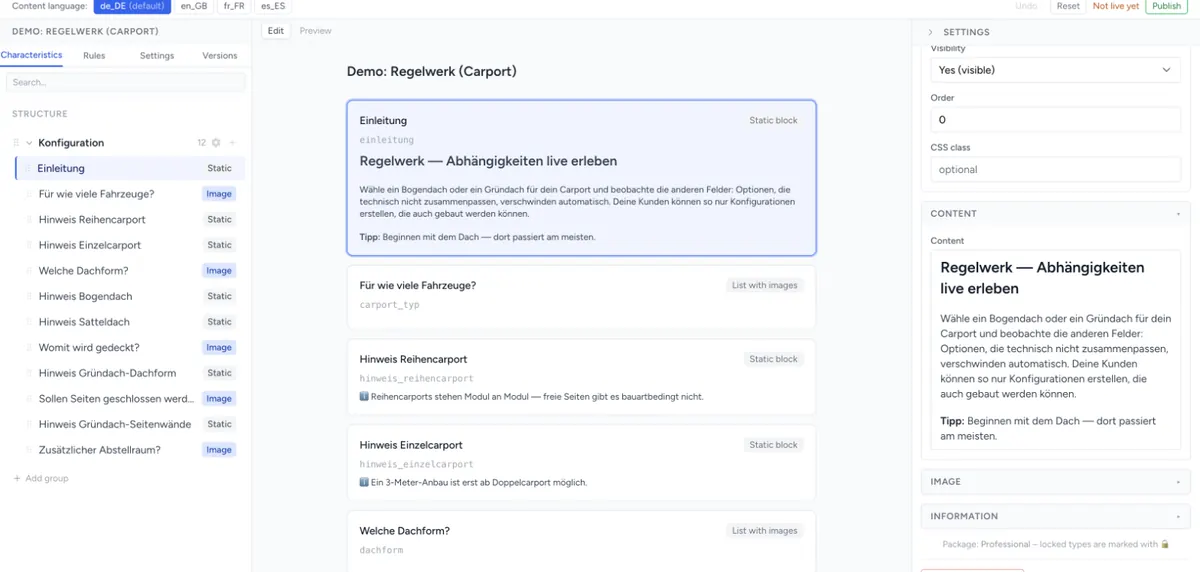
A static field shows content that you define in the admin. The customer cannot select or enter anything. Typical uses:
- a subheading that structures a long group, e.g. “Dimensions” and “Equipment”,
- a note in the right place, e.g. “Please enter dimensions in centimetres”,
- an image, e.g. a dimension sketch in front of the input fields for width and height,
- a link to a page with assembly instructions or colour samples.
Creating it
- In the structure tree, create a new characteristic at the position you want.
- Under Basic settings, set the Data category to Frontend and the Data type to Static field.
- Write the text in the Content section.
- Save. The Preview shows the field straight away.
As with every characteristic, the characteristic's Label appears as a heading above the content and the Information below it. If you leave the label empty, no heading appears – in Legacy as well as in V3. This is how a note text stands in the configurator without its own heading.
The content
The Content field is an editor with formatting:
| Tool | Effect |
|---|---|
| Bold, Italic, Underline, Strikethrough | Text emphasis |
| Heading 2, Heading 3 | Subheadings |
| Bullet list, Numbered list, Quote | Structure |
| Align left, Align center, Align right | Text alignment |
| Insert link | Links the selected text |
| Insert image | Uploads an image (at most 5 MB) and places it in the text |
| Edit HTML source | Shows the content as HTML for direct editing |
You maintain the content per content language. If you switch the language at the top, you edit the translation; if nothing has been entered for a language, the default-language content appears in the field as a grey placeholder. If a translation is missing, V3 shows the content of another language in the configurator.
If the content is empty, the field only shows the label and information.
Showing and hiding a static field with a rule
Like any characteristic, a static field can be hidden with a Blacklist rule. This way a note only appears when it applies – for example “From 6 m width an additional post is required” only for large widths. See Build a Rule Set.
Content from Magento CMS blocks
In Magento 2, $content[identifier] inserts the content of a CMS block; identifier is the block's identifier. For this, CMS Block Integration must be active in the extension, see Install Magento Plugin. In a characteristic's Information this works with both engines, in the Content of a static field only with V3.
Settings that apply to all frontend characteristics
| Setting | For frontend characteristics |
|---|---|
| Required field | Not available for the static field, chart, action button and captcha – the customer does not fill them in. Available for File upload. |
| Visibility | Yes (visible) or Shop only show the characteristic in the configurator, No (hidden) and Backend only hide it. |
| Image | For the static field you can also add a characteristic image, just like for other characteristics. |
| Information / Additional information | Note texts next to the characteristic, as for other characteristics |
| CSS class | Your own class for individual styling, e.g. to highlight a note in colour |
The static field, chart, action button and captcha do not appear in the summary or in the cart – they have no value. More about the settings: Add characteristics & values.
Chart
You can create the Chart data type, but its settings will only follow in the admin in a later version. V3 just shows a placeholder in its place. A chart that is already set up in an older component is only rendered by Legacy; in Shopware 6 and Magento 2 the Load Chart plugin setting must be active for this.
Differences between Legacy and V3
| Legacy | V3 | |
|---|---|---|
| Static field | Shows the content | Shows the content |
$content[…] in the content of a static field |
Is not replaced | Is replaced with the Magento CMS block |
| File upload | Works | Works, see Uploads & Deep Links |
| Chart | Shows an existing chart | Shows a placeholder |
| Captcha (V3 only) | Cannot display it | Works |
More about the engines: Frontend engine: Legacy or V3.
Troubleshooting
- The static field does not appear – check the Visibility and whether a blacklist rule hides it.
$content[…]appears as text in the configurator – this only works in Magento 2 with CMS Block Integration active, and in the content of a static field only with V3. Also check the CMS block's identifier.- Inserted
<style>declarations disappear – the editor removes them. Apply formatting via a CSS class and the component's own CSS. - An image cannot be inserted – the image is larger than 5 MB. Make it smaller and upload it again.
- The chart only shows a placeholder – the component runs with V3. Only Legacy renders charts.