Groups bundle characteristics that belong together – such as “Dimensions”, “Material & colour” and “Drive”. How the groups appear in the shop is set with the Group layout: all characteristics one below the other, as tabs, as an accordion, or as a Wizard that guides your customers through the configuration step by step.
Groups in the editor
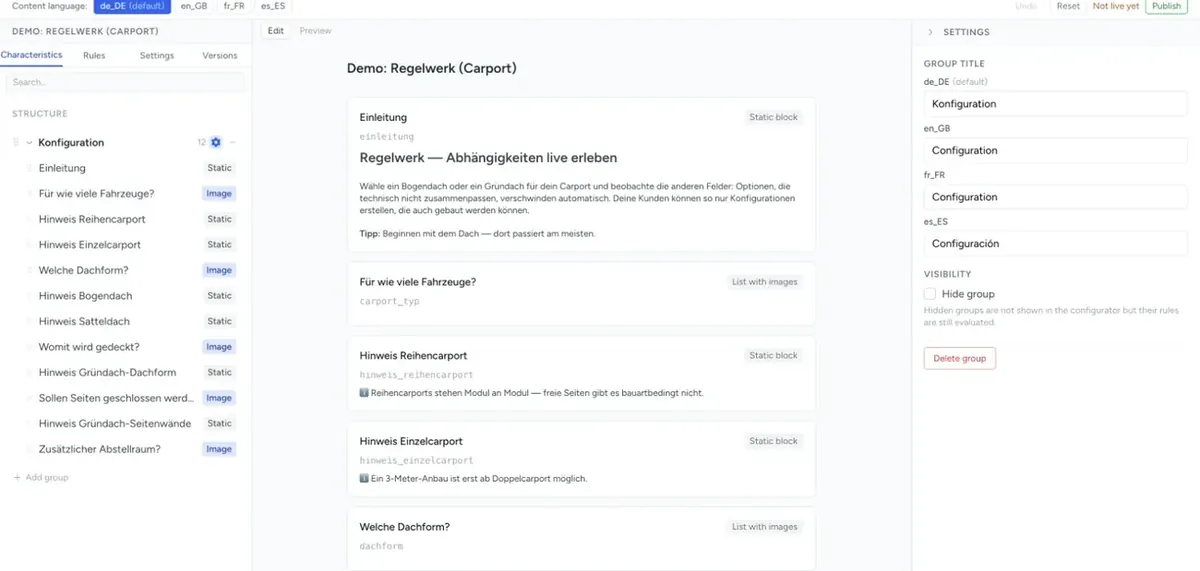
Every characteristic sits in exactly one group. You see the groups on the left in the Characteristics tab under Structure. To the right of Structure it shows which layout is currently set.
| Action | How it works |
|---|---|
| Create a group | Click Add group at the very bottom of the structure tree. A group “New group” is created. |
| Rename a group | On the group's cog (Group settings), enter the name under Group title – one field for each active language. |
| Put a characteristic into the group | Use the group's + (Add characteristic) to create a new characteristic, or drag an existing characteristic into the group by its handle ⠿. |
| Change the order | Drag groups and characteristics by their handle ⠿ to the desired position. Characteristics can also be dragged into another group. |
| Assign an internal name | In the group settings, enter a name such as vehicle under Internal name (ID) – optional, only letters, digits and underscores, unique per component. Shop developers use it to address the group via the JavaScript API. |
| Hide a group | In the group settings under Visibility, tick Hide group. The group does not appear in the configurator, but its rules are still evaluated. |
| Delete a group | Delete group in the group settings. |
Careful when deleting: Deleting the group permanently deletes all characteristics in it. The deletion is saved immediately. If you want to keep the characteristics, drag them into another group first.
A new component has no group yet. So create a group first, before you create characteristics.
Choosing the layout
You set the layout for the whole component: Settings tab → General → Group layout section.
| Layout | How it looks in the shop | Engine |
|---|---|---|
| No groups | All characteristics are listed one below the other, without group names. | Legacy and V3 |
| Tabs | Each group is a tab; the customer clicks between the tabs. | Legacy and V3 |
| Accordion | Each group is a collapsible section. | Legacy only – V3 shows the characteristics as with No groups |
If nothing is selected in the Group layout field (—), the two engines behave differently: Legacy shows tabs, V3 shows no groups. So always choose a layout explicitly.
More on the differences between the engines: Frontend Engine: Legacy or V3.
Groups that disappear automatically
A group is hidden in the shop when none of its characteristics is visible – for example because a rule blocks all characteristics of the group. There is no dedicated rule that shows or hides a whole group. If you want to hide a group depending on a selection, block its characteristics.
The wizard
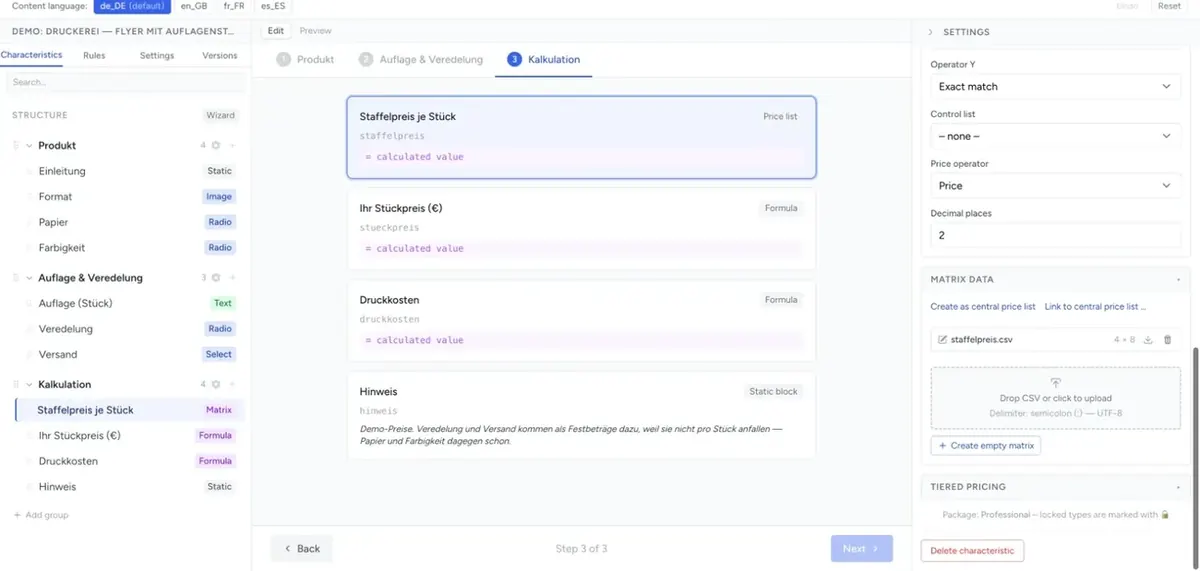
With the wizard you guide your customers through the groups step by step: only when a step is complete do they move on.
Turning it on: Settings tab → General → Group layout section → tick Wizard. The field only appears when the layout is not No groups.
| Setting | Effect |
|---|---|
| Wizard | Turns the step-by-step guidance on. |
| Auto scroll on tab change | Scrolls up to the configurator when moving to the next step – useful for long groups. |
| Top offset for auto scroll | Distance in pixels to the top edge, e.g. for a fixed header in your shop. Default 80. |
| Wizard navigation (V3) | Which navigation V3 shows: Tabs, progress and buttons (default), Back/Next buttons only or None – then the shop page controls the steps via the JavaScript API. Legacy ignores the setting. |
How the wizard behaves
| Legacy | V3 | |
|---|---|---|
| Navigation | Below each group the buttons Back and Next. The first step has no Back, the last no Next. | A progress bar with “Step 2 / 4” and below it ← Back and Next →. |
| Next | Checks the required fields of the current step. If something is missing, the customer stays in the step and sees the error message. | The same. |
| Error rules | An error rule with “Execute on” Wizard also keeps the customer in the step and shows its message. | The same, if the Error type is Error. The message appears on the rule's characteristic, otherwise above Back and Next. |
| Back | Always possible, without a check. | The same. |
| Clicking a later tab | Checks all steps up to there. The customer lands on the first incomplete step. | The same. |
| Hidden groups | Are skipped. | Are skipped. |
| Wizard with accordion | Possible. | Not possible – V3 shows no groups with accordion and therefore no wizard either. |
You set required fields on the characteristic: Behavior section → Required field = Yes. Without required fields the wizard lets the customer move on at any time.
A good group structure
Order the groups the way your customer decides – from the basics to the details:
- Product type – determines which characteristics are relevant afterwards
- Dimensions – width, height, depth
- Material & finish – often depends on the product type
- Equipment – extras and accessories
- Completion – summary and action button
Characteristics that later groups depend on via rules belong in early groups. Otherwise something the customer has already filled in suddenly changes when they go back.
Troubleshooting
- I cannot create a characteristic – the component has no group yet. Click Add group at the bottom of the structure tree.
- The “Wizard” field is missing – the layout is set to No groups. Choose Tabs.
- The wizard lets customers continue without input – the characteristics are not required fields. Set Required field to Yes on the characteristic.
- The accordion does not appear in the shop – the component runs on V3. Use Tabs or switch to Legacy.
- A group is missing in the shop – it is hidden (Hide group), or all of its characteristics are invisible or blocked by a rule.
- After changing steps the configurator sits under the shop's header – increase Top offset for auto scroll.