With the File upload data type, your customers upload their own files in the configurator – a print template, a logo or a sketch, for example. With deep links you save a configuration and open it again later, for example from an email. This article shows how to set up both, where uploaded files go and where the two frontend engines differ.
Creating a file upload
- In the structure tree, create a new characteristic or select an existing one.
- Under Basic settings, set the Data category to Frontend and the Data type to File upload.
- In the Upload settings section, enter the limits (see below).
- Save and publish the component.
The File upload data type is only available in the Ultimate plan. More about data categories and data types: Add characteristics & values.
Upload settings
| Field | Meaning |
|---|---|
| Allowed file types | Comma-separated list of allowed extensions, e.g. .jpg,.png,.pdf. You can leave out the dot – jpg,png,pdf works just as well. Empty means: all file types. |
| Max. file size (MB) | Maximum size of a single file in megabytes. A number without a unit counts as MB. Independently of this, configento.app accepts at most 25 MB per file. |
| Min. files | How many files the customer must upload at least. If the characteristic is not a Required field, the minimum only applies once they upload a file at all. |
| Max. files | How many files the customer may upload at most |
Under Behavior you set Required field and Visibility, as for any characteristic. Use Information to give the customer a hint, for example “Please as a PDF with 3 mm bleed”.
What the customer sees
The customer drags files into the field or selects them with a click. Uploaded files appear in the field, and the customer can remove each one individually.
If a file is too large, has an extension that is not allowed or there are too many files, a message appears and the file is not uploaded.
Where the files go
- On upload: The file is uploaded immediately and stored at configento.app – not only when the customer clicks Add to cart.
- Magento 2: With the Activate Asset Sync? setting, the extension regularly loads the uploaded files into your Magento installation. See Install Magento Plugin.
- Download link: In V3, every file gets its own download address at configento.app. It always opens the file as a download.
- Action button: An email or a PDF contains no files as attachments. In V3, the configuration table (
{{configuration_table}}) links each uploaded file for download. The{{characteristic:NAME.value}}placeholder puts the file names into the text. See The Action Button.
With Legacy, the Load Dropzone plugin setting must be switched on in Shopware 6 and Magento 2, otherwise uploading does not work in the shop.
Differences between Legacy and V3
| Legacy | V3 | |
|---|---|---|
| Upload | Works | Works, also in Shopify |
| Min. files and Required field | Are checked; without a value for Min. files, a required field asks for one file | Are checked the same way before the customer adds to cart or uses the action button |
| Files in the action button's configuration table | File names | File names, each as a download link |
| Display of the limits | – | Allowed extensions, maximum size and number are shown next to the field |
| Creating a deep link | Bar with ?tb=1, address in a message window |
Bar with ?tb=1, address in a field and on the clipboard |
| Opening a deep link | Links from Legacy | Links from V3 and from Legacy |
More about the engines: Frontend engine: Legacy or V3.
Opening a configuration again
Editing from the cart
- Magento 2: Edit in the cart or wishlist opens the configurator again with the saved selection.
- Shopify: With the Configento Cart cart extension, every configured line has an Edit link. It leads to the product page with the previous selection; after adding to cart again, the new configuration replaces the old line. See Installing the Shopify Plugin.
Deep link
A deep link is the address of the product page with ?dl= and the identifier of a saved configuration appended, for example:
https://your-shop.com/carport.html?dl=IDENTIFIERWhen someone opens this address, the configurator loads with the saved selection. If the identifier is unknown, the configurator starts normally without a selection.
Creating a deep link: Append ?tb=1 to the product page address. A bar appears at the top of the page with the button Generate Deep Link (Legacy) or Generate deep link (V3). Put the configuration together and click the button:
- Legacy shows the finished address in a message window.
- V3 saves the configuration, shows the address in a field in the bar and copies it to the clipboard. This works in the shop – with Magento 2, Shopify and the HTML snippet – not in the preview in the admin.
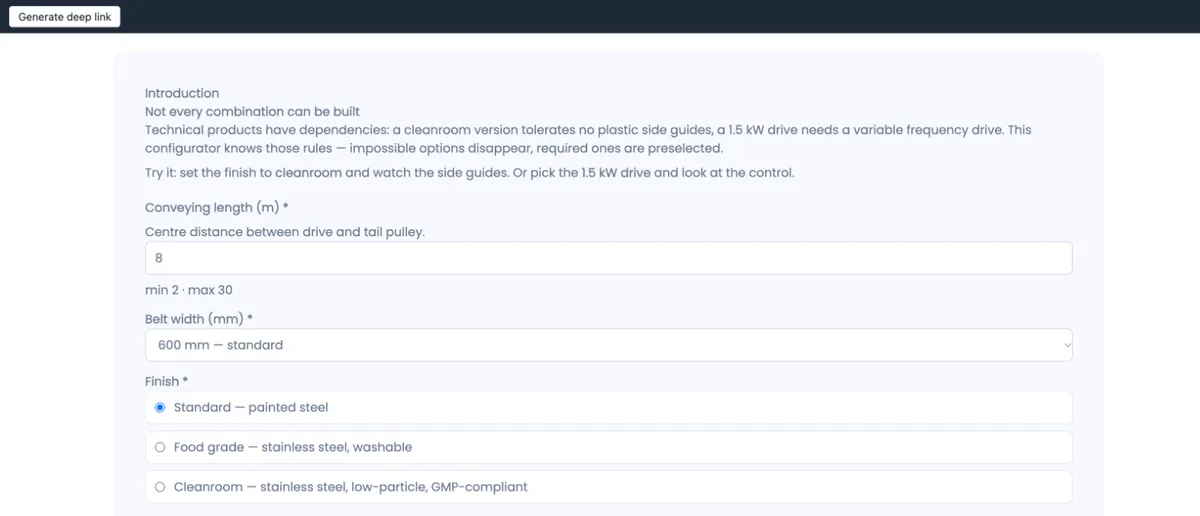
The bar is a tool for you; without ?tb=1 your customers don't see it.
Deep link via JavaScript (V3): If you want to create the address yourself, for example for your own "Share" button, use the JavaScript API: storeAsset() saves the current configuration and returns its identifier as id; append it to the address as ?dl=. More about the API: JavaScript API (V3).
<script>
  Configento.ready.then(async function () {
      var saved = await Configento.first().storeAsset();
      var link = location.origin + location.pathname + '?dl=' + saved.id;
      console.log('Deep link:', link);
  });
</script>
After switching to V3: V3 still opens deep links you created with Legacy (short identifier of digits and letters) – the saved configuration then comes from the classic cloud. Links from V3 have a long identifier with hyphens; Legacy cannot open them. If you switch a component from V3 back to Legacy, create the links again.
Troubleshooting
- The upload stops with “Server rejected the upload (HTTP 413)” – the file is larger than 25 MB. Ask the customer for a smaller file.
- No upload field appears in the shop – the component runs with Legacy, and Load Dropzone plugin is switched off in Shopware 6 or Magento 2. Switch the setting on and clear the cache.
- A file is rejected – check Allowed file types and Max. file size (MB). The extension must match exactly:
.jpegis not.jpg. - The files are missing from the action button's email – files are not attached. Insert
{{configuration_table}}and the files appear as download links in the email, or take over the names with{{characteristic:NAME.value}}. - A deep link opens an empty configurator – the identifier was copied incorrectly, the configuration belongs to a different component, or a V3 link is opened with Legacy. Create the link again on the right product page.
- No bar appears with
?tb=1– there is none in the preview in the admin; open the product page in the shop. If it doesn't appear there either, the page doesn't load a configurator.